Design
Inkscape for Mac: Download, Install, and Get Started
If you've been looking for a free alternative to Adobe Illustrator, Inkscape is probably the most capable option out there. It's free, open-source, and has been actively developed for over 20 years. The current version — 1.4.3, released December 26, 2025 — runs natively on both Apple Silicon and Intel Macs.
This guide covers which version to download for your Mac, how to install it, what to expect on first launch, and how to start using it.
Quick answer:
- Apple Silicon Mac (M1, M2, M3, M4): download the arm64 DMG
- Intel Mac: download the x86_64 DMG
- Current version: Inkscape 1.4.3
- Download from: inkscape.org
What Is Inkscape?
Inkscape is a vector graphics editor. That means it works with shapes, paths, and lines that can be scaled to any size without losing quality — unlike photos or screenshots, which get blurry when you enlarge them.
It's the kind of tool used to create logos, icons, illustrations, diagrams, and SVG files for the web. The same category as Adobe Illustrator or Affinity Designer, but completely free.
Inkscape has been around since 2003 and is maintained by a community of developers. It uses SVG (Scalable Vector Graphics) as its native file format — the same open standard used by browsers and design tools everywhere. It also imports and exports a wide range of other formats including PDF, EPS, PNG, and AI files.
Who uses it? Freelance designers who don't want to pay for a Creative Cloud subscription. Students. Web developers who need to create or edit SVG files. Small business owners making their own logos. Anyone who needs professional vector tools without the professional price tag.
Which Version to Download for Your Mac
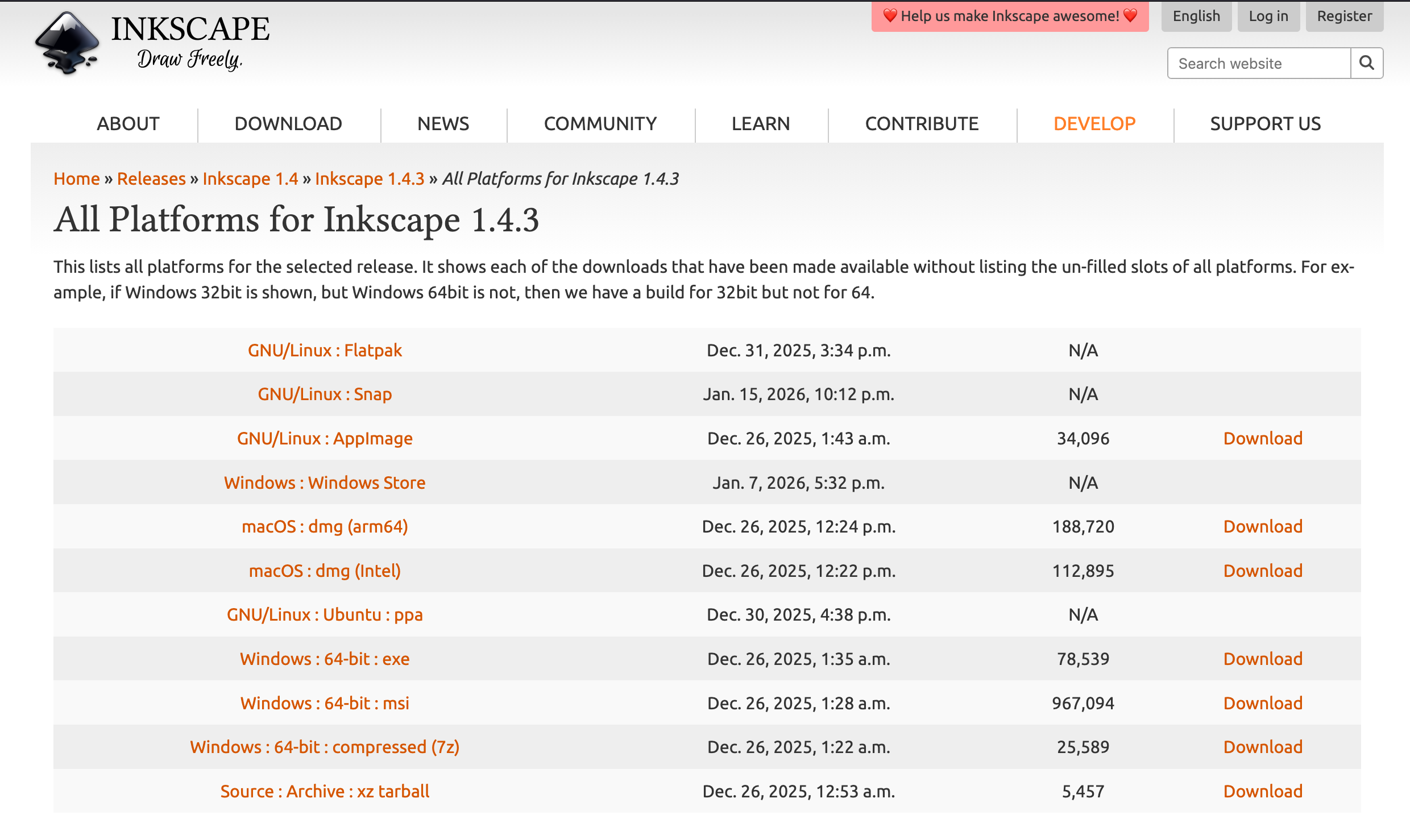
Inkscape 1.4.3 comes in two Mac versions. Getting the wrong one won't break anything — you can always download the other — but it's worth picking the right one from the start.
How to check your Mac's chip: Click the Apple menu → About This Mac. Look at the chip line.
- If it says Apple M1, M2, M3, or M4 → download the arm64 DMG
- If it says Intel → download the x86_64 DMG
Go to inkscape.org and click Download. You'll see both options listed under macOS. Pick the one that matches your chip.
How to Install Inkscape on Mac
Step 1: Open the DMG file Once the download finishes, open the DMG file from your Downloads folder. A window will appear showing the Inkscape icon and your Applications folder.
Step 2: Drag Inkscape to Applications Drag the Inkscape icon into the Applications folder. This is the standard Mac install process — same as any other app.
Step 3: Eject the DMG Once it's copied, eject the DMG by dragging it to the Trash or pressing Command + E. You don't need it anymore.
Step 4: First launch — the Gatekeeper warning The first time you open Inkscape, macOS will show a security warning. This is normal for apps downloaded outside the Mac App Store. The message will say something like "Inkscape cannot be opened because it is from an unidentified developer" or "Apple cannot verify this app."
Here's how to get past it:
- Find Inkscape in your Applications folder
- Right-click (or Control-click) on the Inkscape icon
- Choose Open from the menu
- A dialog will appear asking if you're sure — click Open again
After this first confirmation, Inkscape will open normally every time. You only need to do this once.
On macOS Sequoia (15), if you get a "Move to Trash" prompt instead of an Open option, go to System Settings → Privacy & Security, scroll down to the Security section, and click Open Anyway next to the Inkscape message. Then launch it again.
First Things to Do After Installing
Set your document units When you create a new document, Inkscape will ask for document properties. Set your units to whatever you need — pixels for screen work, millimeters for print. You can always change this later under File → Document Properties.
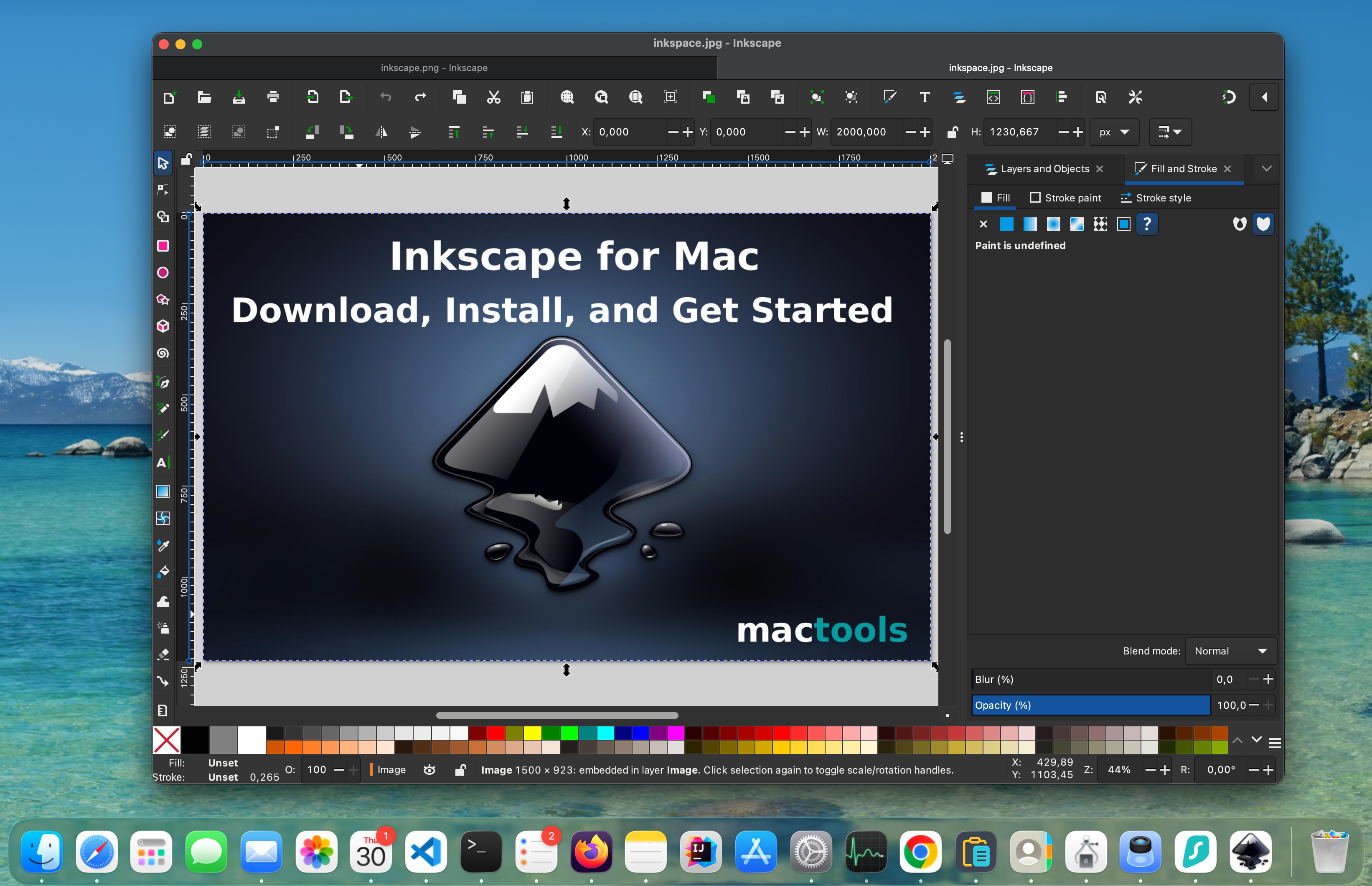
Get familiar with the interface Inkscape's layout takes a few minutes to get used to. Here's what you're looking at:
- Left toolbar — all your drawing tools: selector, pencil, pen, shapes, text, and more
- Top toolbar — changes based on which tool is selected, showing options for that tool
- Right panel — object properties, fill and stroke settings, XML editor
- Canvas — the white rectangle in the center is your document. Everything outside it is scratch space.
The first thing most people reach for is the rectangle tool (R on your keyboard) or the pencil tool (P). Give one of them a try to get a feel for how drawing works.
Learn the three most important keyboard shortcuts:
- S or F1 — selector tool (moves and resizes objects)
- N or F2 — node editor (adjusts the points on a path)
- Ctrl + Z — undo
Save as SVG, export as PNG Inkscape saves in SVG format by default, which keeps everything editable. When you're ready for a final image, go to File → Export PNG Image to export a flat PNG at whatever resolution you need.
What Inkscape Is Good At on Mac
Logos and icons Inkscape handles logo work well. You can draw precise shapes, use Boolean operations (combine, subtract, intersect paths), and export clean SVG files that scale perfectly at any size.
SVG files for the web Because SVG is Inkscape's native format, it's one of the best tools for creating web-ready vector graphics. Icons, illustrations, and UI elements come out clean and standards-compliant.
Technical diagrams and flowcharts The alignment tools, grid snapping, and precise coordinate controls make Inkscape a solid choice for technical drawings, diagrams, and charts.
A free alternative to Illustrator If you're a freelancer or student who needs vector editing capabilities but can't justify the cost of Adobe Illustrator ($22/month as of 2026), Inkscape covers most of the same ground at no cost.
Where Inkscape Has Limits
Being honest about this matters — the app isn't perfect.
The interface takes getting used to Inkscape doesn't feel like a Mac-native app in the same way Affinity Designer or Sketch does. The UI is functional but dense, and the learning curve is steeper than most Mac apps. New users often spend their first hour just figuring out where things are.
Performance on large files Inkscape can slow down on very complex files with lots of nodes or effects. This has improved significantly in recent versions but it's worth knowing if you plan to work with large, detailed illustrations.
Not for photo editing Inkscape is a vector editor. If you need to edit photos or work with bitmap images, you want something else — GIMP is the free option, or you can use the built-in macOS Photos app for basic edits.
AI file compatibility is limited Inkscape can open Adobe Illustrator files to some extent, but complex AI files with linked assets, effects, or specific Illustrator features may not import cleanly. If you need reliable round-trip compatibility with Illustrator, that's a genuine limitation.
Inkscape vs the Alternatives
| Inkscape | Affinity Designer | Adobe Illustrator | |
|---|---|---|---|
| Price | Free | $69.99 one-time | ~$22/month |
| SVG native | Yes | Partial | Partial |
| Mac native feel | Functional | Yes | Yes |
| Learning curve | Steep | Moderate | Steep |
| AI file compatibility | Limited | Good | Native |
| Best for | Free vector editing | Polished Mac workflow | Industry standard |
The short version: Inkscape is the right choice if free matters most. Affinity Designer is the right choice if you want a polished Mac experience and don't mind a one-time purchase. Illustrator is the industry standard, which matters if you're collaborating with agencies or studios that use Adobe files.
FAQ
Is Inkscape really completely free? Yes. Inkscape is licensed under the GPL (GNU General Public License). There's no paid version, no trial period, and no watermarks. The developers accept donations but it's entirely optional.
Does Inkscape work on Apple Silicon (M1, M2, M3, M4)? Yes. Inkscape 1.4.3 includes a native arm64 DMG built specifically for Apple Silicon Macs. You don't need Rosetta.
Can Inkscape open Adobe Illustrator files? It can open AI files to some degree, but compatibility varies. Simple files usually import reasonably well. Complex files with Illustrator-specific effects or linked content may not come through cleanly.
What file formats does Inkscape support? Inkscape's native format is SVG. It also imports and exports PDF, EPS, AI (limited), PNG, JPEG, TIFF, and more. For a full list, check the Inkscape documentation.
Does Inkscape work on older Macs? Inkscape 1.4.3 supports macOS 11 (Big Sur) and later. If you're on an older macOS version, you may need to use an earlier release of Inkscape.
The Bottom Line
Inkscape is the most capable free vector editor available for Mac. It's not the slickest app on your dock, but it does things that used to cost hundreds of dollars per year — for nothing.
If you're just getting started with vector graphics, download the free version, spend an hour with it, and see how far it gets you. Most people are surprised by how much it can do.
Leave a Comment