Security
Mac Firewall Explained: Settings, Security, and Alternatives
Every Mac comes with a built-in firewall. You have probably seen it sitting somewhere in System Settings and wondered what it actually does — or whether you even need it turned on.
The honest answer is: it depends. The Mac firewall is a useful tool, but it has real limits that most people don't know about. This guide covers how the firewall works, how to find and configure its settings, what it cannot protect you from, and what you can use instead if you want more control.
What Is the Mac Firewall?
A firewall is a security tool that controls network traffic. It watches connections coming in or going out of your device and blocks the ones that don't meet its rules.
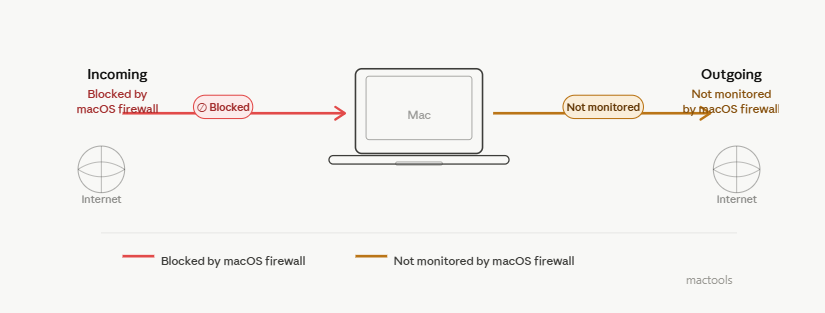
macOS has a built-in application firewall. Its main job is to block unwanted incoming connections — meaning it stops other devices on a network from reaching your Mac without permission.
When it's turned on, the firewall monitors which apps and services are allowed to accept incoming connections. If something tries to connect to your Mac and it isn't on the approved list, the firewall blocks it.
When the built-in firewall matters most
The firewall is most useful when you're on a network you don't fully trust:
- Public Wi-Fi in a café or airport
- A shared office or co-working space network
- A hotel or conference Wi-Fi
On these networks, other devices can see your Mac. The firewall reduces your exposure by limiting what they can connect to.
At home on a private router, the risk is lower — your router already acts as a basic barrier. But turning the firewall on at home doesn't hurt anything either.
Why is the Mac firewall off by default?
This surprises a lot of people. The reason is fairly straightforward: macOS doesn't run many open network services by default. Unlike older versions of Windows, which had lots of ports open and listening for connections, a freshly set up Mac doesn't have much exposed. Apple's logic is that if nothing is listening, there isn't much for the firewall to block. Turning it on manually is still a good habit, especially if you ever use public networks.
How to Find Mac Firewall Settings
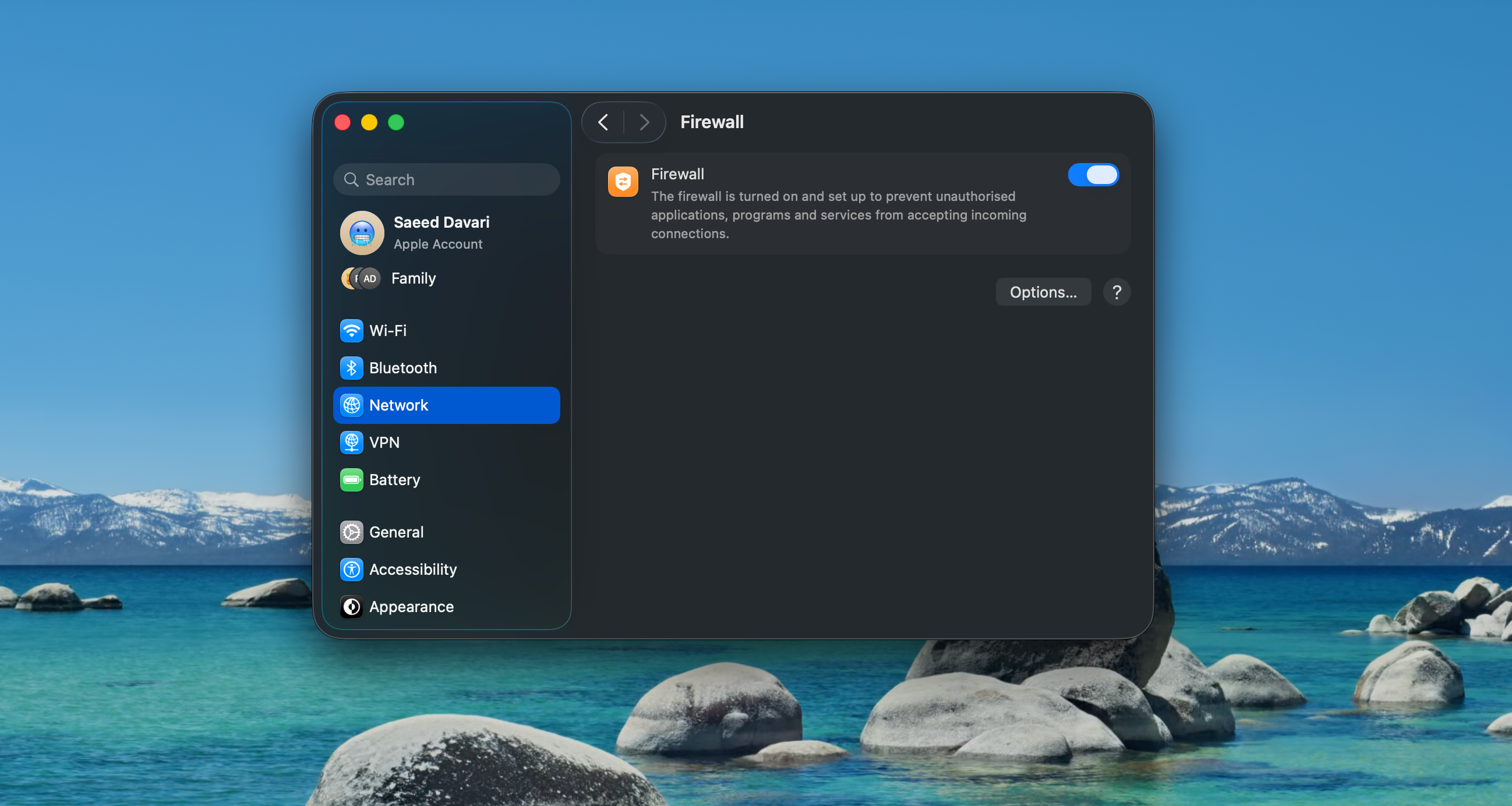
Finding the firewall settings is simple. The location changed in recent macOS versions, so here's where it lives now:
- Click the Apple menu in the top-left corner
- Open System Settings
- Click Network in the sidebar
- Click Firewall
- Toggle the switch to turn it on
That's it. Once it's on, you can click Options to adjust what gets blocked or allowed.
Key settings worth knowing
Inside the Options panel, you'll find a few controls:
Block all incoming connections — This is the strictest setting. It blocks everything except the connections needed for basic internet access. Useful in high-risk situations, but it will break things like file sharing or AirDrop.
Automatically allow built-in software to receive incoming connections — This lets Apple's own apps (like Safari and FaceTime) accept connections without asking you. Most people should leave this on.
Automatically allow downloaded signed software to receive incoming connections — This covers apps you've installed that are signed with a valid developer certificate. Fine to leave on unless you want tighter control.
Enable Stealth Mode — When this is on, your Mac won't respond to network probes like ping requests. Devices scanning the network won't get a response, which makes your Mac harder to detect. It doesn't make you invisible on the internet, but it reduces your footprint on local networks.
How Much Protection Does the Mac Firewall Provide?
The built-in firewall does its job well within a narrow scope. The problem is that scope is smaller than most people realize.
What it protects against
- Unsolicited incoming connections from other devices on the same network
- Attempts to reach network services running on your Mac
- Basic network reconnaissance on public Wi-Fi
What it does not protect against
This is the part that matters more:
- Malware already on your Mac — If something malicious is already running, the built-in firewall won't stop it from sending data out.
- Outbound connections — Apps that reach out to the internet on their own are not blocked. The firewall focuses on incoming traffic, not outgoing.
- Malicious websites — Opening a bad link in your browser is not something the firewall monitors.
- Phishing — Tricked into entering your password somewhere? The firewall has no role here.
Here's a simple example. Say you accidentally install an app that looks legitimate but quietly sends your files to a remote server. The Mac firewall won't alert you. It wasn't asked about an incoming connection — the app made an outgoing one, and that's outside what the built-in firewall watches.
The Real Limits of Apple's Firewall
Once you understand the incoming-only focus, the limits become clearer.
No outbound monitoring
This is the biggest gap. The built-in firewall doesn't tell you which apps are connecting to the internet or where they're sending data. In a world where apps routinely phone home with analytics, usage data, and other information, that's a meaningful blind spot.
No visibility into app network activity
You can't open the macOS firewall and see a live list of which apps are making connections right now. For that, you'd need a separate tool entirely.
Limited rule management
The built-in firewall gives you a simple allow/block list per app. There's no way to set rules based on destination, port, or connection type. That's fine for most everyday users, but anyone who wants real control over their network traffic will hit the ceiling quickly.
Who tends to look for alternatives
- People who want to know when apps connect to the internet
- Developers testing their own software
- Privacy-focused users who don't want apps sending data without permission
- Anyone who had a data leak and wants better visibility going forward
Mac Firewall Alternatives
If the built-in firewall isn't enough, there are good options available. They focus on what Apple's firewall skips: outbound connections.
LuLu — Free and open-source
LuLu is built by Objective-See, a non-profit security research organization that makes free tools for macOS. It's the most recommended free option for outbound connection monitoring.
When any app tries to connect to the internet, LuLu shows you an alert. You choose to allow or block it. Over time, it builds up a set of rules so you're not asked about the same apps repeatedly.
What makes LuLu stand out:
- Completely free — no trial, no subscription, no paid upgrade
- Open-source — the code is public on GitHub, so anyone can check what it does
- Outbound focused — catches exactly what Apple's firewall misses
- Lightweight — runs quietly in the menu bar without slowing your Mac down
- Works alongside Apple's firewall — they don't conflict; Apple handles incoming, LuLu handles outgoing
The only thing to be ready for: when you first install LuLu, you'll get a wave of alerts as it learns which apps you use. This settles down after a day or two once your rules are set.
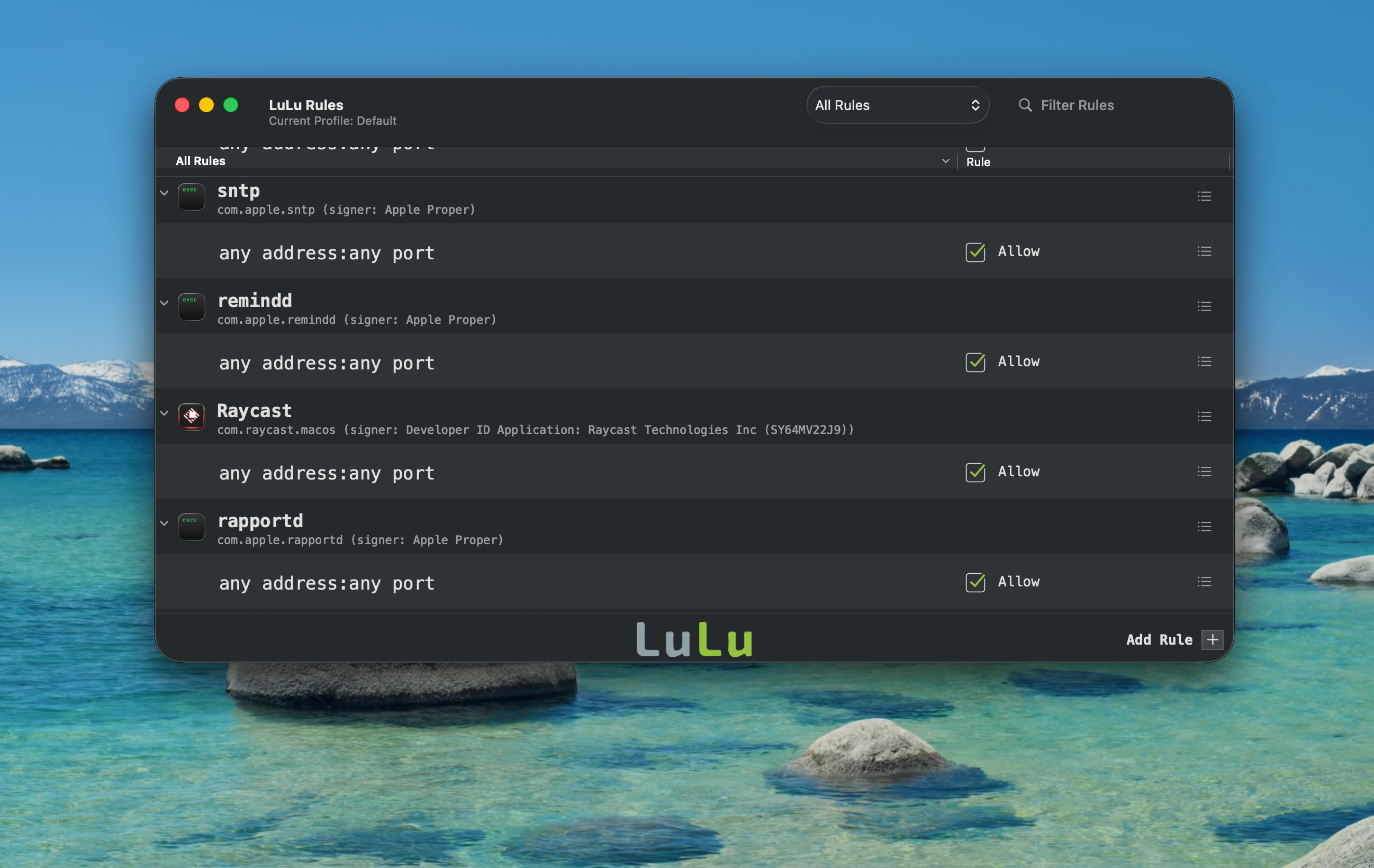
LuLu pairs naturally with two other free Objective-See tools: KnockKnock, which scans for software that installs itself to run at startup, and BlockBlock, which monitors in real time and alerts you the moment anything tries to install itself persistently. Together, the three tools cover most of what a free Mac security setup needs.
Radio Silence — Paid, simpler
Radio Silence takes a lighter approach. You add apps to a block list and it silently stops them from connecting to the internet. No alerts, no rules — just quiet blocking. It costs $9 and suits users who already know which apps they want to silence.
Little Snitch — Paid, most powerful
Little Snitch is the gold standard for Mac outbound firewalls. It gives you detailed network maps, connection logs, and fine-grained rules. It's more capable than LuLu but costs around $69 for a lifetime license. Worth it if you're a developer or someone who wants deep control, but overkill for most users.
Which option fits you
| User type | Best fit |
|---|---|
| Casual user, just wants protection | Built-in Mac firewall, turned on |
| Privacy-focused, wants to monitor app connections | LuLu (free) |
| Developer or power user wanting deep control | Little Snitch |
| User who wants simple app blocking, no alerts | Radio Silence |
Is the Mac Firewall Enough?
For a lot of people, yes. If you enable it, keep your software updated, and don't install random apps from untrusted sources, the built-in firewall handles the most common risks of being on shared networks. It's easy to set up and requires no maintenance.
But it's not a complete solution. It won't tell you what your apps are sending out, it won't catch malware that's already on your machine, and it gives you very little visibility into what's happening on your network.
If you care about privacy, work in security, or just want to know when apps are phoning home, the built-in firewall is a starting point — not a finish line.
If you want a broader look at how the Mac firewall fits into a full security setup, our guide to essential macOS security tools covers everything from Malwarebytes to KnockKnock
FAQ
Should I turn on the Mac firewall?
Yes. It takes about ten seconds and reduces your exposure on public and shared networks. There's no good reason to leave it off.
Will turning on the firewall slow down my Mac?
No. The performance impact is not noticeable in normal use.
Why is the Mac firewall off by default?
macOS doesn't run many open network services by default, so there's less for an incoming firewall to block. Apple also designed it this way to avoid disrupting apps and network services for users who don't know how to configure a firewall. You should still turn it on.
Does the Mac firewall block outgoing connections?
No. Apple's built-in firewall only handles incoming connections. To monitor or block outbound traffic, you need a separate tool like LuLu.
What is Stealth Mode on Mac firewall?
Stealth Mode stops your Mac from responding to network ping requests. Devices scanning the network won't get a response from your machine, making it harder to detect. It's a good option to enable, especially on public Wi-Fi.
What is the difference between LuLu and the built-in Mac firewall?
Apple's firewall blocks unwanted incoming connections. LuLu monitors outgoing connections and alerts you when apps try to reach the internet. They do different jobs and work well together.
Final Thoughts
The Mac firewall is worth enabling. It's free, built in, and takes seconds to turn on. For anyone on public Wi-Fi regularly, it's a simple layer of protection that costs nothing.
Just don't treat it as your only line of defense. It doesn't watch outbound traffic, it doesn't catch malware that's already running, and it gives you no visibility into what your apps are doing on the network.
If you want more control, start with LuLu. It's free, open-source, and fills the exact gap that Apple's firewall leaves. Pair it with KnockKnock and BlockBlock and you have a solid, free security setup that doesn't require a paid subscription to anything.
The most important step is the simplest one: go to System Settings → Network → Firewall, and turn it on if it isn't already.
Leave a Comment