Productivity
Organize Chaos: Top File Management Apps for Mac Users
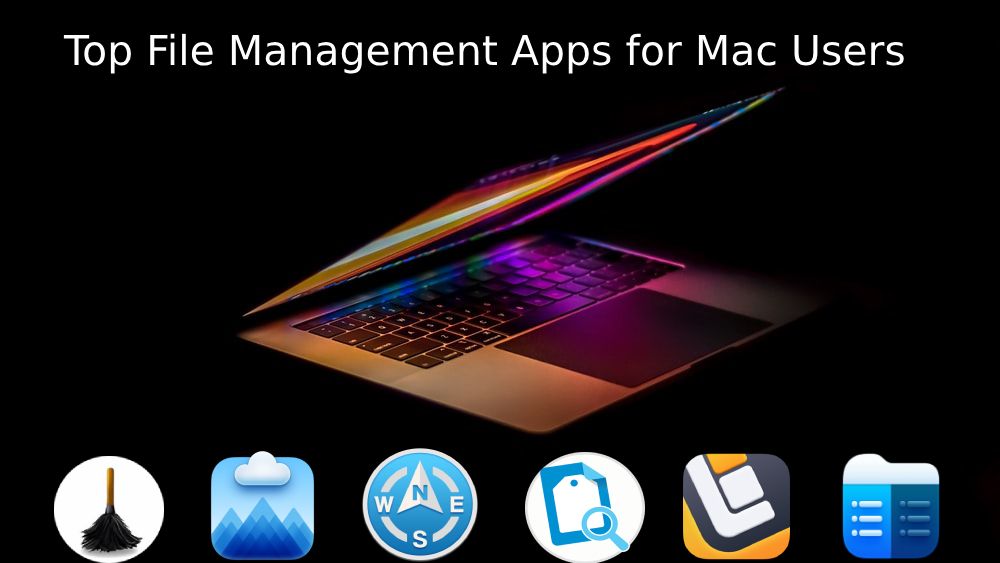
Let’s face it: if you use a Mac, your desktop has probably looked like a digital junk drawer at least once. Files pile up, folders multiply, and before you know it, finding that one document you swear you saved last week feels like searching for a needle in a haystack. But what if you could transform that chaos into order? With the right tools, organizing files on your Mac doesn’t have to feel like a chore. Let’s explore apps that can help you declutter, streamline, and take control of your digital life.
Why File Management Matters
A messy file system isn’t just annoying—it can slow you down. Wasting time hunting for files means less time being productive (or, you know, actually enjoying your Mac). Built-in tools like Finder get the job done, but they’re pretty basic. Third-party apps take organization to the next level, offering features like tags, smart folders, cloud syncing, and even AI-powered search. Whether you’re a student, a creative pro, or someone who just wants to tidy up, these tools can save you hours.
1. Path Finder: Finder, But Smarter
Finder is fine, but Path Finder is like Finder’s more capable older sibling. It’s packed with features that make file management faster and more flexible.
Dual-Pane Browsing : View two folders side by side to drag-and-drop files without constantly switching windows. This is a game-changer for organizing photos, documents, or project files. Batch Renaming : Rename 100 files in seconds with customizable rules (like adding dates or numbers). No more manual renaming one file at a time.
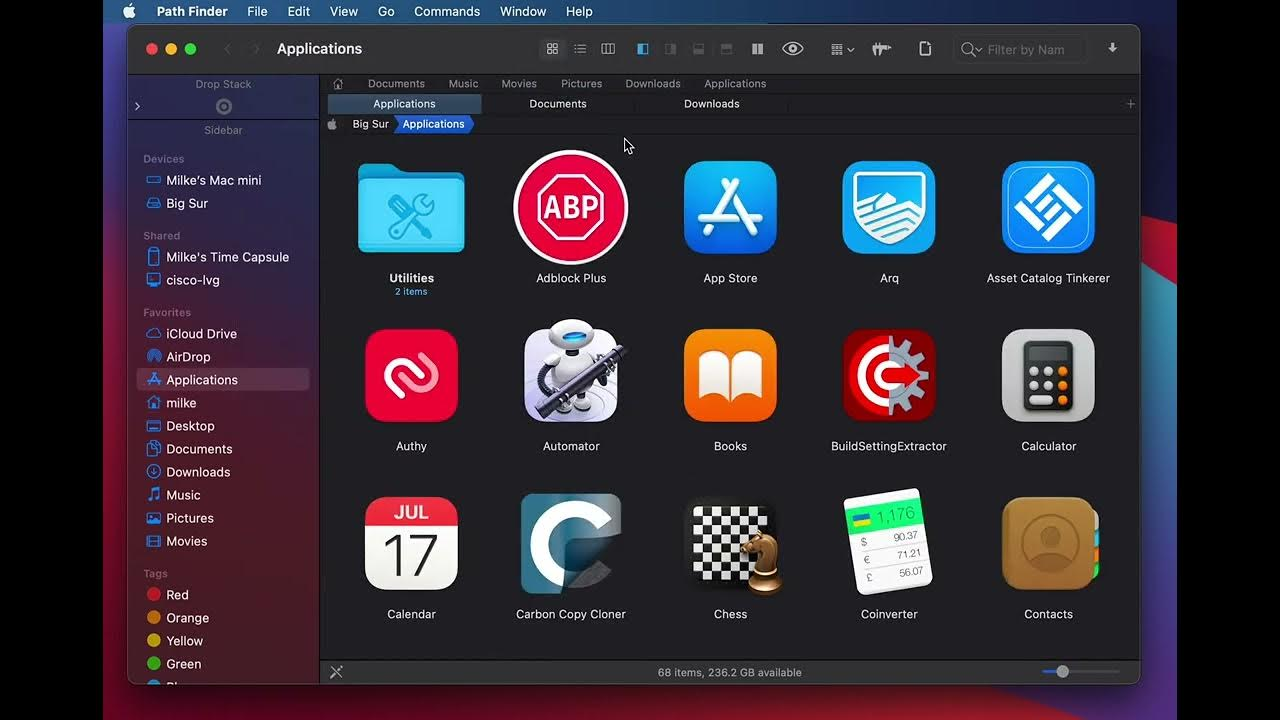
Path Finder also simplifies tasks like viewing hidden system files—no Terminal commands needed. You can compress files, calculate folder sizes, or preview media without opening other apps. It’s not free, but its one-time purchase fee is worth it if you handle lots of files daily.
2. Leap: Tagging Made Simple
If you love organizing files with tags, Leap is a fantastic real-world alternative. It’s designed to help you sort files using customizable tags, making it easy to group related items.
How It Works :
- Assign color-coded tags to files (e.g., “Work,” “Personal,” “Urgent”).
- Search by tags or combinations (e.g., “Work + Photos” or “Urgent + Documents”).
- Auto-tag files using rules (e.g., “Tag all screenshots as ‘Design’”).
Leap’s drag-and-drop interface is intuitive, and it integrates seamlessly with Finder. It’s free to try, with a paid upgrade for advanced features.
3. ForkLift: The Power User’s Sidekick
If you work with servers, external drives, or cloud storage, ForkLift is a must-try. It combines file management with FTP/SFTP tools, so you can edit files on a server as easily as local ones.
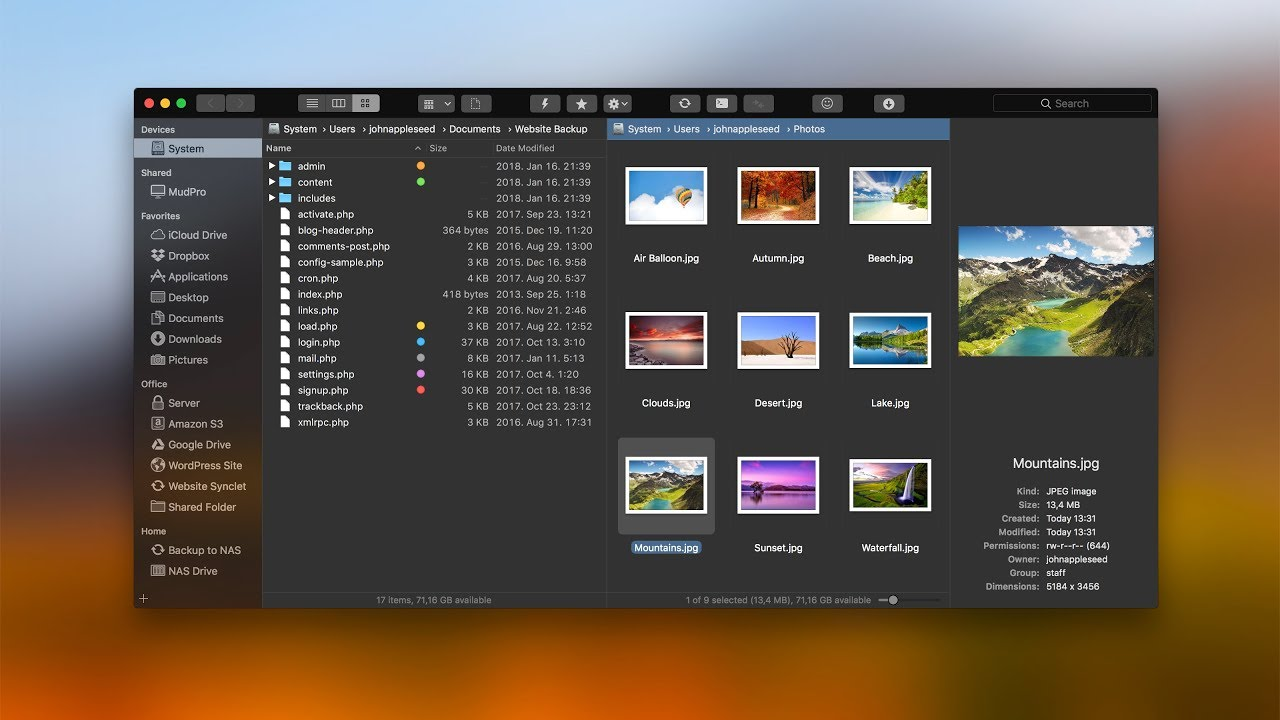
Split View : Compare folders side by side to spot duplicates or organize files faster. Sync Folders : Automatically update files across two locations (great for backups). ForkLift’s clean design hides its advanced features, making it approachable for beginners but powerful enough for pros.
Quick Look & More : Preview files without opening them, transfer files between servers, or compress archives in one click. A free trial is available, with a paid license for continued use.
4. CloudMounter: Connect All Your Clouds
Do you juggle Dropbox, Google Drive, and iCloud? CloudMounter lets you access all your cloud accounts in one place, right from Finder. No more switching between apps or tabs.
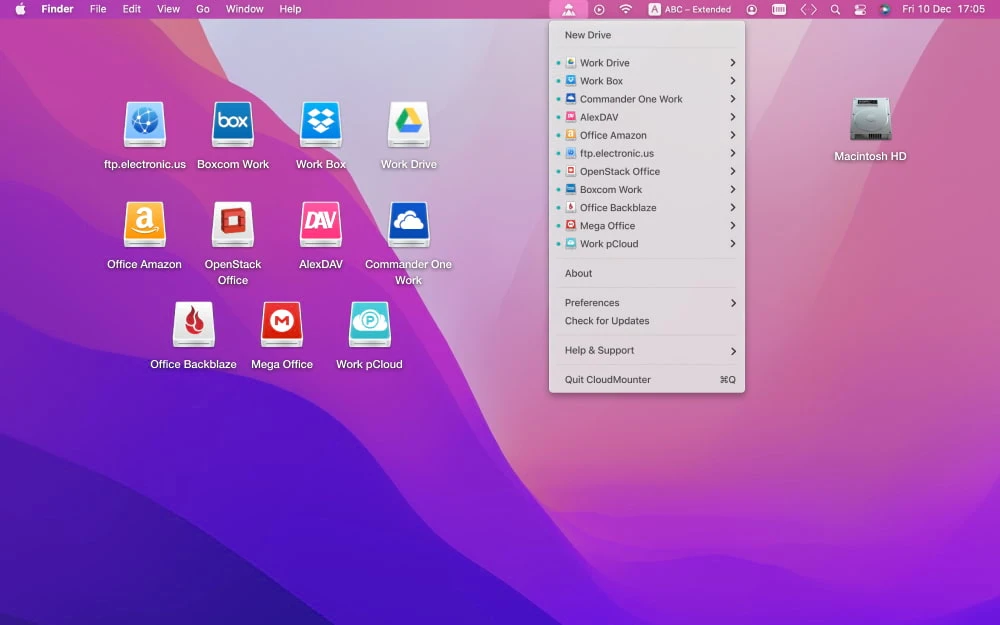
Mount Clouds as Drives : Treat Google Drive like an external hard drive. Open, edit, and save files directly from the cloud. Encrypt Files : Protect sensitive data before uploading to the cloud.
Direct Transfers : Move files between clouds without downloading them first. The app is free for basic use, with a subscription for advanced features like encryption.
5. Hazel: Automate the Mess Away
Hazel is like a digital housekeeper for your Mac. Set rules, and it automatically sorts, renames, or deletes files for you. For example:
- “Move all screenshots to the ‘Screenshots’ folder.”
- “Delete files in the Downloads folder older than 30 days.”
Set-and-Forget Rules : Create rules like “Tag PDFs from my manager as ‘Work’” or “Sort receipts into the Taxes folder.” Hazel runs quietly in the background, so you barely notice it—until you realize your Desktop isn’t buried under 50 files anymore.
Time-Saving Automation : Perfect for busy people who want to focus on work, not housekeeping. It costs money, but the time saved is worth it.
6. Commander One: Dual-Pane Powerhouse
Commander One is a dual-pane file manager that’s perfect for users who want total control. It’s like having two Finders in one window, making it easy to move files between folders, drives, or even FTP servers.
FTP/SFTP Support : Connect to servers directly from the app. Edit remote files as if they’re on your Mac. Archive Handling : Open and extract ZIP, RAR, 7Zip, and other archives without extra apps.
Customizable Interface : Adjust colors, shortcuts, and layouts to fit your workflow. The free version offers basic features, while the Pro version unlocks advanced tools like cloud integration and encryption.
Tips for Staying Organized
Apps are helpful, but habits matter too:
- Schedule Cleanup Time : Spend 10 minutes every Friday organizing new files.
- Use Descriptive Names : “ProjectPlan_v2_Final.docx” beats “Untitled12.”
- Stick to a System : Whether it’s tags, folders, or a mix, consistency is key.
Final Thoughts
Your Mac doesn’t have to feel like a black hole of files. Whether you need automation (Hazel), cloud control (CloudMounter), or a dual-pane powerhouse (Commander One), there’s an app for your workflow. Start with one tool, experiment, and watch your digital chaos turn into calm.
Leave a Comment