Menu Bar Tools
DisplayBuddy
You can also get DisplayBuddy on Setapp, together with 250+ other Mac apps in one subscription.
Get DisplayBuddy on Setapp →Affiliate link: we may earn a commission if you subscribe, at no extra cost to you.
DisplayBuddy is a Mac app that lets you control your external monitors from your Mac, so you never have to press the tiny buttons on the monitor again. It talks to your monitor over DDC, which means real hardware brightness control, not just dimming. You can also change contrast, volume, input source, resolution, and rotation, switch your whole setup with one click, and let your displays follow your day with schedules. It is a one-time purchase with no subscription.
Key Features
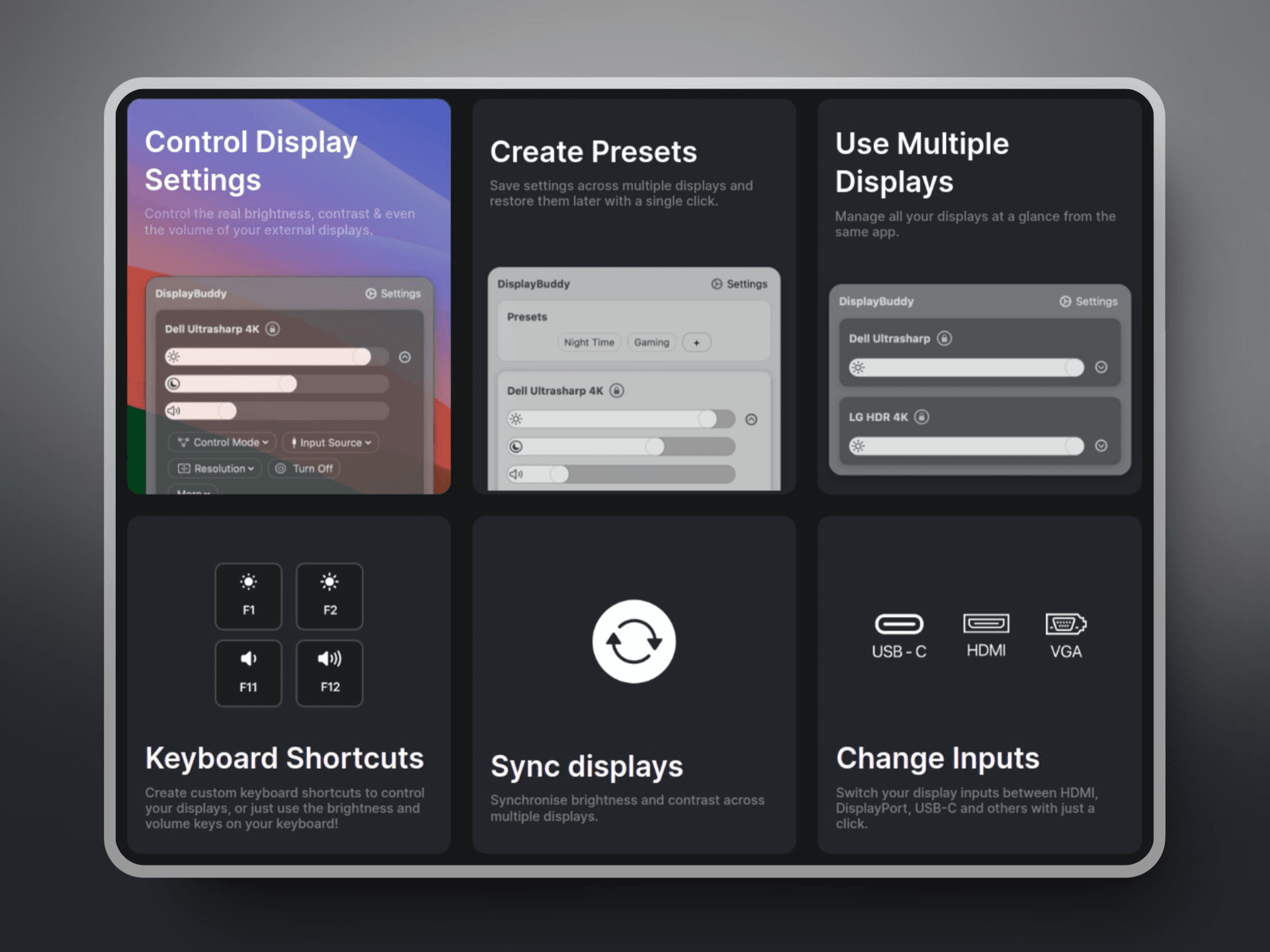
- Real Brightness Control: Adjust the actual hardware brightness of your monitors, the same control you would reach with the buttons on the back, right from your menu bar.
- Your Brightness Keys Work: Use F1 and F2, or your own custom shortcuts, to control external monitors the way they control your MacBook screen.
- More Than Brightness: Change contrast, the volume of built-in monitor speakers, input source, resolution, and rotation.
- Sync Mode: Move one slider and every display follows, so you do not have to match brightness by eye.
- Presets: Save setups like Work, Movie night, or Gaming and switch between them in one click. Presets can restore brightness, contrast, volume, input, resolution, rotation, and display arrangement.
- Schedules: Tie a preset to sunrise, sunset, a time of day, your charger, or a connected display, so your screens change on their own.
- Works With Hard-to-Control Monitors: If a monitor does not respond to DDC, DisplayBuddy dims it with gamma control automatically. LG webOS and Samsung Tizen smart monitors can be controlled over Wi-Fi.
- Siri, Shortcuts, CLI, and MCP: Control your displays with Siri and macOS Shortcuts, or script them with a command line tool and MCP for AI agents.
- Apple Displays Too: It supports Studio Display, Pro Display XDR, and Cinema Displays, plus an UltraBright mode for your MacBook when you are outside.
Frequently Asked Questions (FAQ)
Is DisplayBuddy free?
No. DisplayBuddy is a paid app. It costs $24.99 as a one-time purchase, with free lifetime updates, including major versions, and no subscription. You can get a full refund within 7 days on full-price purchases. It is also available on Setapp.
What macOS version does DisplayBuddy need?
The current version needs macOS 12 or later and runs natively on Apple Silicon, from M1 to M5. If you have an older Mac on macOS 10.13 to 10.15, an older version of DisplayBuddy is available.
Which monitors does it work with?
It works with most external monitors that support DDC/CI, including Dell, LG, Samsung, BenQ, ASUS, Acer, HP, and Lenovo. It also supports Apple displays. Support can vary by model.
What if my monitor does not support DDC?
DisplayBuddy switches to gamma control automatically and dims the screen that way. For LG webOS and Samsung Tizen smart monitors, it can reach them over Wi-Fi.
Can I use my Mac keyboard brightness keys?
Yes. The brightness keys, F1 and F2, control your external monitors, and you can set your own custom shortcuts too.
Can DisplayBuddy automate my displays?
Yes. Schedules can switch presets at sunrise, sunset, a set time, when you plug in your charger, or when a display connects. It also works with Siri and macOS Shortcuts.
Is there a Windows version?
Yes. DisplayBuddy is also available for Windows, though its presets cover fewer settings than the Mac version.
Does DisplayBuddy move my windows between monitors?
No. DisplayBuddy controls the monitors themselves. To move windows to a new display when you plug it in, try DisplayShift.