Article
How to Use PhotoRec on Mac to Recover Deleted Files
You deleted a file, emptied the Trash, or formatted a card by mistake, and now you want it back. Before you pay for a recovery app, there's a free tool that's been around for over 20 years and still works well: PhotoRec.
This guide walks you through installing PhotoRec on a Mac, running a scan, and sorting through what you get back. It also tells you honestly when PhotoRec probably won't help, so you don't waste hours scanning a drive for nothing.
The quick answer
Here's the short version, based on where your files were:
- SD card, USB drive, or external hard drive: Worth a try. PhotoRec does well here.
- Internal SSD on a modern Mac: Chances are low. Keep reading for why.
- A drive that's clicking, disconnecting, or acting unstable: Stop. Don't run repeated scans on failing hardware. See the warning near the end of this guide.
One rule matters more than any other: never save recovered files back onto the same drive you're recovering from. You could overwrite the very files you're trying to save. Always recover to a different drive.
Check these first
Before you touch PhotoRec, rule out the easy fixes:
- Trash. Obvious, but worth checking.
- Time Machine. If you have a backup, this is faster and gives you your original filenames back.
- iCloud Drive's Recently Deleted folder, if you use iCloud Drive.
- Photos app's Recently Deleted album, which holds photos for 30 days after you delete them.
- APFS local snapshots. Time Machine quietly saves hourly snapshots on your Mac's internal drive, even without an external backup drive connected. A recovery tool that can read snapshots may bring a file back this way.
If none of these help, PhotoRec is your next step.
Will PhotoRec actually work for you?
This is the question that matters most, so let's answer it before anything else.
PhotoRec doesn't read your file system the normal way. It scans the raw storage for patterns that match known file types, a process called file carving. That's why it can pull files back even when a drive's file system is damaged or unreadable. It's also why it can't use a filename or folder location to find your file; it just looks for a recognizable pattern of data.
Here's how that plays out by situation:
| Situation | PhotoRec's odds |
|---|---|
| Deleted photos from an SD card | Often worth a try |
| Deleted files from a USB drive | Often worth a try |
| Deleted files from an external hard drive | Often worth a try |
| A reformatted external drive | Sometimes works |
| An external drive that won't mount | Sometimes works |
| Deleted files from an internal Mac SSD | Poor |
| A drive that's physically failing | Don't keep scanning it |
The reason internal SSDs are hard: when you delete a file, macOS can tell the drive that those storage blocks are free to reuse. On an SSD, a background process called TRIM often erases that data quickly, sometimes within seconds, so there's nothing left to carve. Modern Macs with Apple Silicon or a T2 chip also encrypt data on the internal drive. That alone doesn't make recovery impossible, since the running system can still read its own files normally, but combined with TRIM, it makes internal SSDs a much tougher target than a plain external drive.
There's a second problem specific to newer Macs: PhotoRec can search either the free space on a drive (which only finds deleted files) or the whole drive. Free-space scanning only works on a few file systems, and APFS, the file system on current Macs, isn't one of them. So on an APFS drive, PhotoRec can only do a whole-drive scan. That takes longer and can turn up a lot of unrelated files, not just the one you're after.
None of this means give up on an internal drive. It means set your expectations before you spend an afternoon on it.
What PhotoRec is (and what it can't do)
PhotoRec is a free, open-source tool made by a company called CGSecurity. It's been maintained since 2001 and supports more than 480 file types, including common ones like JPG, PNG, PDF, DOCX, and MP4.
It's a companion tool to another program called TestDisk, which is made by the same developer. TestDisk fixes partition tables and can often recover a file's original name and folder. PhotoRec, by contrast, doesn't care about the file system at all. It just looks for file signatures. That's a strength when a drive is badly damaged, but it comes with trade-offs. Both tools are installed together, which is why the install command below refers to "testdisk" even though this guide is about PhotoRec.
Here's what PhotoRec can't do:
- Recover data that's already been overwritten by new files
- Recover data from SSD blocks that TRIM has already erased
- Bring back your original filenames or folder structure, in most cases
- Recover files that are encrypted and that you don't have the key or password for
- Recover data from a drive so physically damaged that your Mac can't read it at all
Knowing this up front saves you from getting your hopes up for the wrong situation.
Before you start
A short checklist:
- Stop using the affected drive right away. Every new file you save risks overwriting the ones you want back.
- Have a second drive ready with enough free space to hold the recovered files. This can't be the drive you're recovering from.
- Give Terminal Full Disk Access. Go to System Settings, then Privacy & Security, then Full Disk Access, and add Terminal. Without this, PhotoRec may not see your disks at all.
Install PhotoRec
The easiest way is with Homebrew. If you don't have Homebrew yet, install it first, then run:
1brew install testdiskThat installs both TestDisk and PhotoRec. To start PhotoRec, run:
1sudo photorecYou'll be asked for your Mac's admin password, since PhotoRec needs low-level access to your drives.
If you'd rather not use Homebrew, you can download PhotoRec directly from the CGSecurity website instead. Either way gets you the same tool.
Recover your files, step by step
PhotoRec runs in Terminal with a simple text menu. Use the arrow keys to move and Enter to confirm.
1. Choose your disk. You'll see a list of connected drives with their names and sizes. Pick the one with your lost files. Be careful here, since picking the wrong drive means scanning (and possibly later, saving files back to) the wrong device.
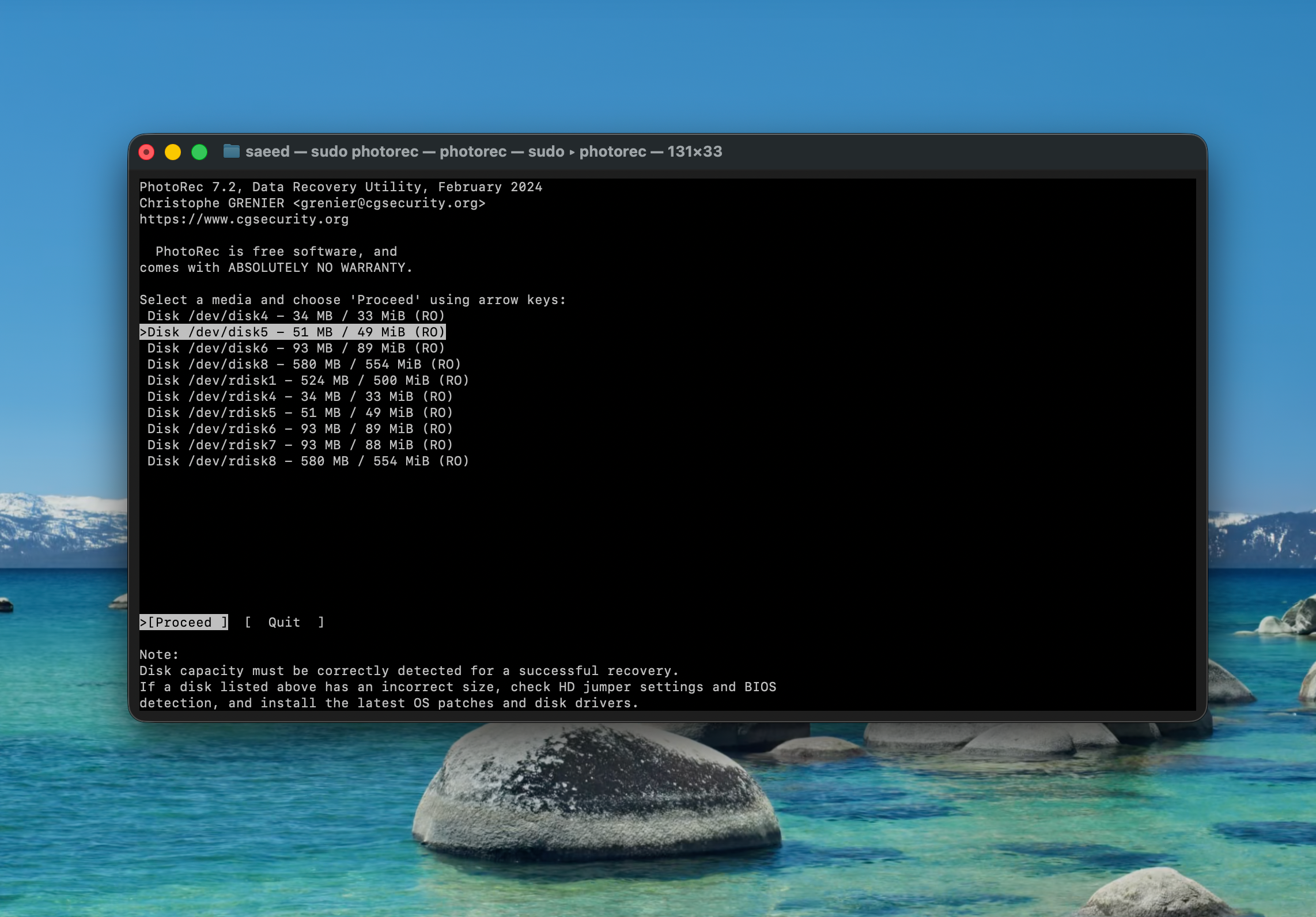
2. Choose the partition. Most drives show one main partition. Select it and continue.
3. Choose the file system type. Pick "Other" unless you know your drive uses ext2, ext3, or ext4, which is unusual for a Mac.
4. Choose Free or Whole. This choice matters more than it looks.
- Free scans only the unallocated space, which is where deleted files usually end up. It's faster and gives cleaner results, but it only works on certain file systems (not APFS).
- Whole scans the entire drive. Use this if Free isn't available for your file system, or if Free didn't find what you needed.
5. Pick which file types to look for. This step is easy to skip, but it's one of PhotoRec's best features. By default, it searches for hundreds of file types. If you only lost photos, open the file options and turn off everything except image formats like JPG and PNG. This makes the scan faster, keeps the results smaller, and makes sorting through them much easier afterward.
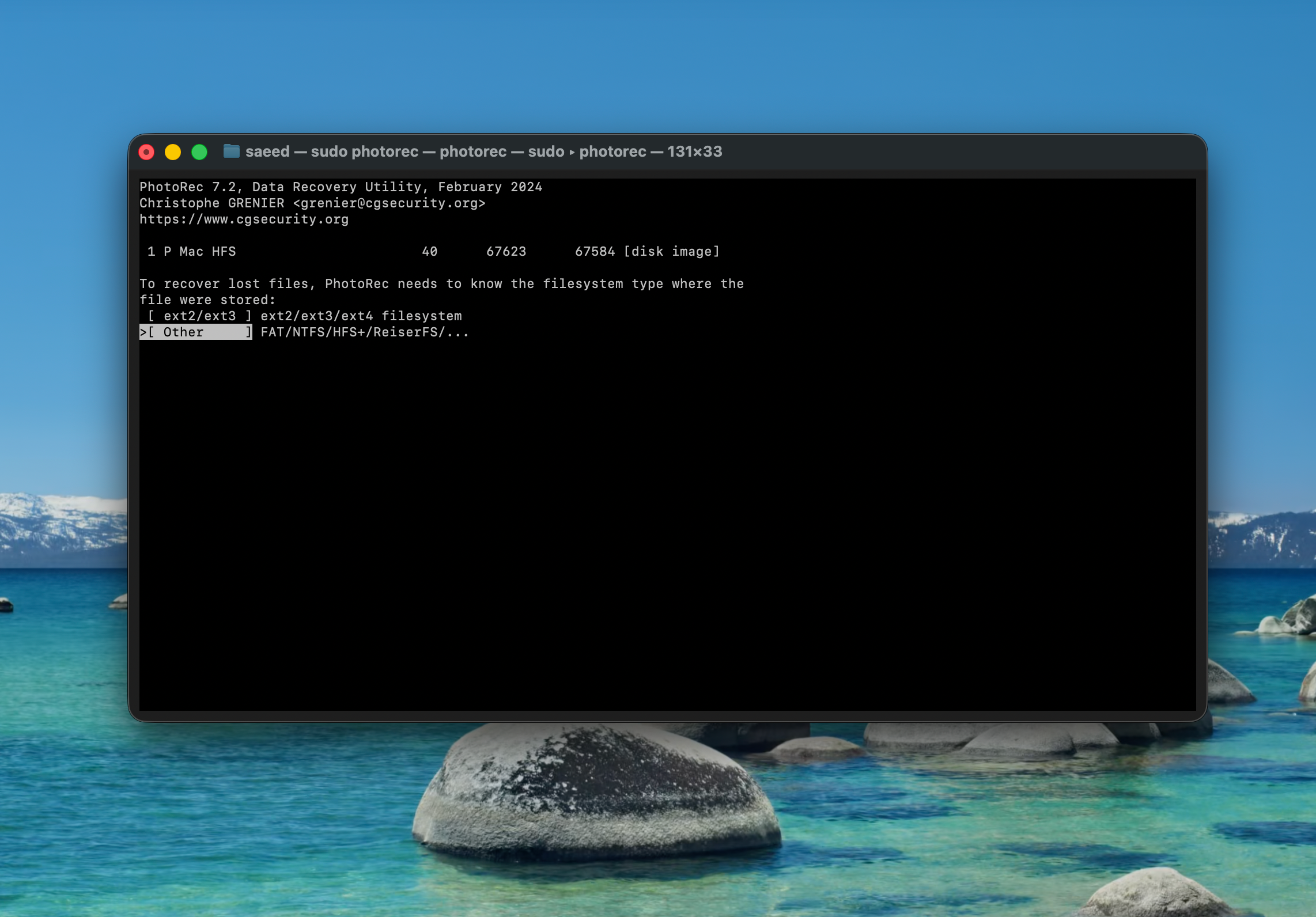
6. Choose where to save recovered files. This is the most important click in the whole process. Pick a folder on a different drive than the one you're scanning. If you save recovered files back onto the same disk, you risk destroying the very data you're trying to recover.
7. Start the scan and wait. Depending on the size of the drive, this can take anywhere from a few minutes to several hours. You'll see a progress percentage and an estimated time remaining.
Sorting through what you get back
When the scan finishes, you'll find your recovered files inside folders named recup_dir.1, recup_dir.2, and so on. PhotoRec creates a new folder every so often during the scan, so your files will be spread across several of them.
Don't expect this to be a clean, one-to-one match with what you lost. A scan that reports 5,000 recovered files does not mean 5,000 usable files. You'll likely see thumbnails, cached copies, duplicate-looking versions, partial files, and files that just happen to share a signature with the format you asked for. This is normal.
To make sorting easier, use Finder's search to filter by file type, or run a command like this in Terminal to pull out just the JPGs:
1find recup_dir.* -type f -iname "*.jpg"Open a sample of the recovered files before you count on any of them. Some may be corrupted or cut off partway through.
Troubleshooting
No disks show up. Check that Terminal has Full Disk Access, as described above. Also confirm the drive is actually connected and mounted.
"Permission denied" errors. Make sure you ran PhotoRec with sudo, and that you entered your admin password correctly.
The scan finds nothing. The data may already be overwritten, or (on an SSD) already erased by TRIM. Try the Whole option if you used Free, though on APFS drives Whole is your only choice anyway.
Recovered files won't open or look corrupted. This happens when a file was partly overwritten, or when PhotoRec guessed at the file's original size incorrectly. Try opening a range of files rather than just the first few; some are often usable even when others aren't.
The scan is taking a very long time. Large drives with many file types selected can take hours. Narrowing your file type selection in step 5 is the biggest speed improvement you can make.
When to stop and call a professional
PhotoRec is safe to try on a drive that mounts normally and just has deleted files on it. It's a different situation if your drive shows signs of physical failure. Stop and consider a data recovery service if:
- The drive makes clicking, grinding, or repeated spinning noises
- It disconnects and reconnects on its own
- It's getting less stable each time you use it
- The data on it is irreplaceable, like the only copy of years of family photos or critical business records
Running PhotoRec, or any recovery tool, again and again on failing hardware can make things worse, not better. If the drive is dying, every extra read is a risk. In that case, the safer move is to have a professional create a sector-by-sector copy of the drive first, before anyone tries to recover files from it.
For a card with vacation photos that just got accidentally deleted, PhotoRec is a great first step. For the one copy of something you can't replace, on a drive that sounds unhealthy, it's worth paying someone who does this for a living.
A few ways to avoid this next time
The best fix is not needing PhotoRec in the first place:
- Turn on Time Machine with an external drive or network drive
- Keep a second, offsite backup for anything truly important
- Wait for an import to finish, and check it, before formatting a memory card
FAQ
Is PhotoRec safe to use?
Yes. It's open-source, so its code is public and has been reviewed for years. It reads from your drive but doesn't change the original data unless you make the mistake of saving recovered files back onto the same drive.
Is PhotoRec really free?
Yes, completely. It's licensed under the GNU General Public License, with no paid tier, trial limit, or account required.
Does PhotoRec work on Apple Silicon Macs?
It runs fine on Apple Silicon. The bigger issue isn't the chip, it's that Apple Silicon Macs use SSD storage with TRIM and APFS, both of which make recovering deleted files from the internal drive harder, regardless of which chip is inside.
Can PhotoRec recover files from an APFS drive?
It can scan an APFS drive, but only with the Whole option, since free-space scanning isn't supported on APFS. Encrypted APFS volumes add another layer of difficulty.
Is there a PhotoRec app with a graphical interface for Mac?
There's a GUI version called QPhotoRec, but it's only built for Windows. On a Mac, you'll use the Terminal-based version described in this guide.
Can PhotoRec recover deleted photos from an SD card?
Yes, this is one of the situations PhotoRec handles best. SD cards typically use FAT32 or exFAT, both of which support the faster free-space scan.
Leave a Comment