Cleaning & Maintenance
Mole for Mac: The Free Alternative to CleanMyMac
Most Mac cleanup apps follow the same playbook: a polished interface, a dramatic scan animation, and a paywall at the end. CleanMyMac is the category leader, but it costs money — either a subscription or a one-time fee that keeps climbing. For a lot of users, especially developers, that's hard to justify when the underlying tasks aren't that complicated.
Mole takes a different approach. It's a free, open-source command-line tool that handles what CleanMyMac, AppCleaner, DaisyDisk, and iStat Menus do — but from your terminal, in a single lightweight binary, with no subscription attached.
This article covers what Mole actually does, how to install it, the commands you'll use most, and whether it makes sense for your workflow.
What Is Mole?
Mole is an open-source Mac toolkit built around the mo command. You run it from the terminal, and it handles deep cleaning, app uninstalling, disk analysis, and live system monitoring. It is MIT licensed, which means the code is public, free to use, and free to inspect.
It was built specifically for macOS, though an experimental Windows version exists in a separate branch on GitHub.
One thing worth knowing upfront: Mole is not trying to replace CleanMyMac for everyone. If you want a visual app with a scan button and a progress bar, this is not that. But if you're comfortable in the terminal — or willing to learn a handful of commands — Mole gives you more control with less overhead.
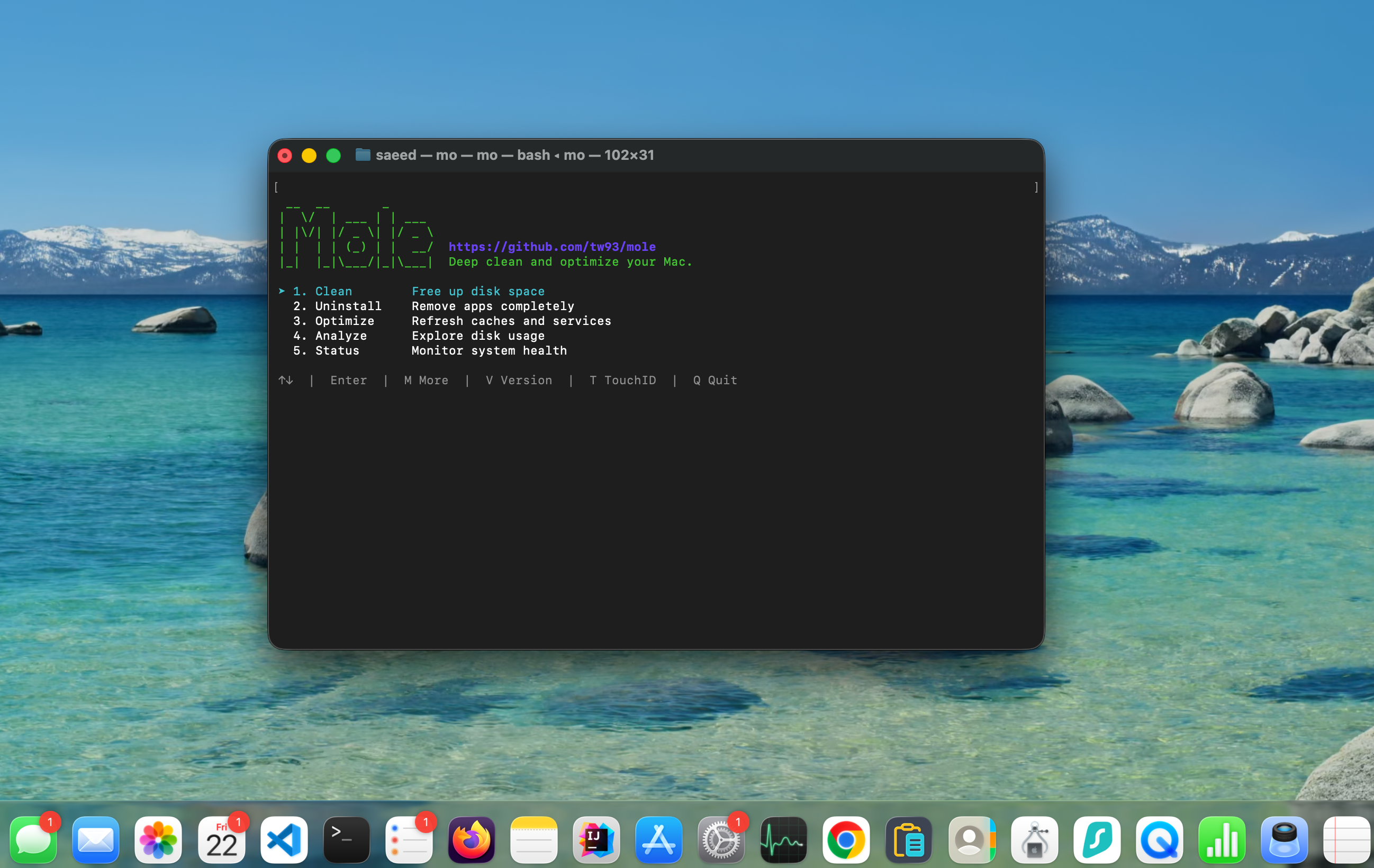
There's also a gentler entry point than you might expect. Type mo by itself and you get an interactive menu. You don't have to memorize commands to get started.
Is Mole Right for You?
Before going further, a quick honest answer:
Mole is a great fit if you are a developer, a power user, or anyone comfortable opening Terminal. It is especially useful if you work with projects that generate a lot of build artifacts — Node.js, Python, Xcode, Rust, and so on.
Mole is probably not for you if you want a visual interface, have never used Terminal, or prefer clicking through a GUI. In that case, tools like AppCleaner or PearCleaner are better starting points.
Why Developers Are Switching to Mole
The case for Mole comes down to four things:
No subscription. Mole is free. Not freemium, not a trial — completely free and open-source. There is nothing to unlock.
Terminal-native workflow. For developers who already live in the terminal, switching to a GUI app just to clean up caches feels backward. Mole fits where you already work.
Lightweight. Mole has no background process, no menu bar icon, no agent running at startup. It runs when you call it and does nothing when you don't.
Transparent. Because the code is public on GitHub, you can see exactly what each command does before running it. That matters when a tool is about to delete files from your system.
Developer-specific cleanup is also where Mole really earns its place. It handles the kinds of junk that CleanMyMac doesn't really target — node_modules folders, Python virtual environments, Xcode derived data, build and dist folders. These can quietly eat gigabytes over time and most GUI cleaners ignore them entirely.
How to Install Mole on Mac
There are two ways to install Mole.
Option 1 — Homebrew (recommended):
1brew install moleOption 2 — Install script:
1curl -fsSL https://raw.githubusercontent.com/tw93/mole/main/install.sh | bashAfter installation, confirm it worked:
1mo --versionMole works on both Apple Silicon and Intel Macs. If you want shell tab completion set up, run mo completion after installing.
Best Mole Commands for Cleaning Your Mac
Here are the commands you will actually use. If you want to see what any command will do before it runs, add --dry-run. It is the safest way to get familiar with Mole.
mo — Interactive Menu
Just type mo and press Enter. You get a menu-driven interface that walks you through your options. This is the best starting point if you are new to Mole.
mo clean
1mo cleanThis is the main cleanup command. It removes caches, logs, temp files, browser leftovers, and leftover data from apps that have already been uninstalled. Run it with --dry-run first to preview what it will remove:
1mo clean --dry-runIf there are caches you want to protect, use:
1mo clean --whitelistmo uninstall
1mo uninstallRemoves apps along with their hidden leftovers — launch agents, preferences, support files, and anything else the app scattered across your system. Much more thorough than dragging an app to the Trash. Preview it first:
1mo uninstall --dry-runmo optimize
1mo optimizeRefreshes caches and system services. Useful if your Mac feels sluggish after a macOS update or a big batch of installs. You can manage protected rules with mo optimize --whitelist.
mo purge
1mo purgeCleans up project build artifacts. This is the developer-specific command. It targets folders like node_modules, dist, build, target, and venv that accumulate across projects. If you have multiple old Node or Python projects sitting around, this can reclaim a significant amount of space. Preview first:
1mo purge --dry-runConfigure which directories it scans with:
1mo purge --pathsmo analyze
1mo analyzeOpens a visual disk explorer in the terminal.
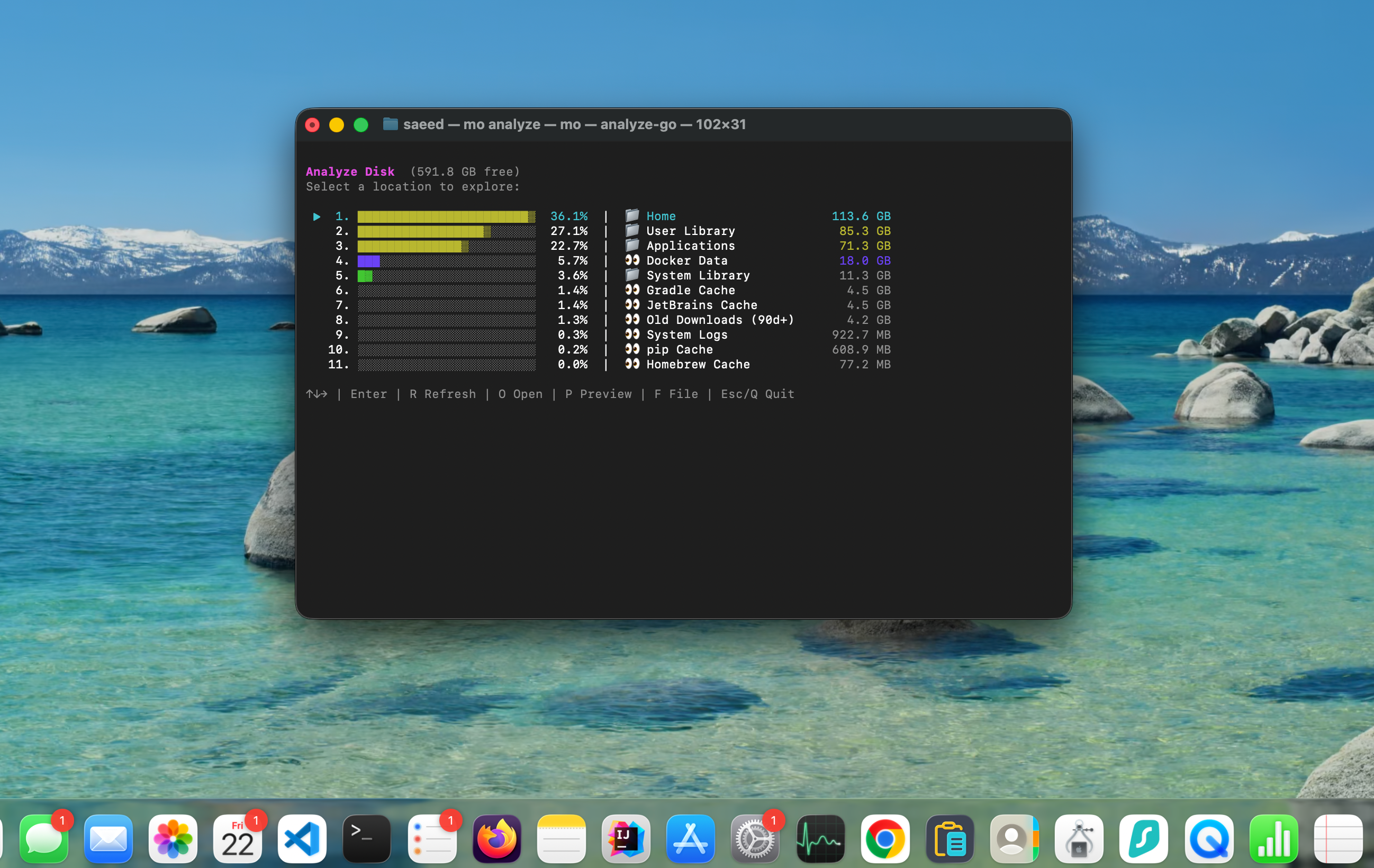
You can see which folders and files are taking up the most space. You can also point it at a specific location:
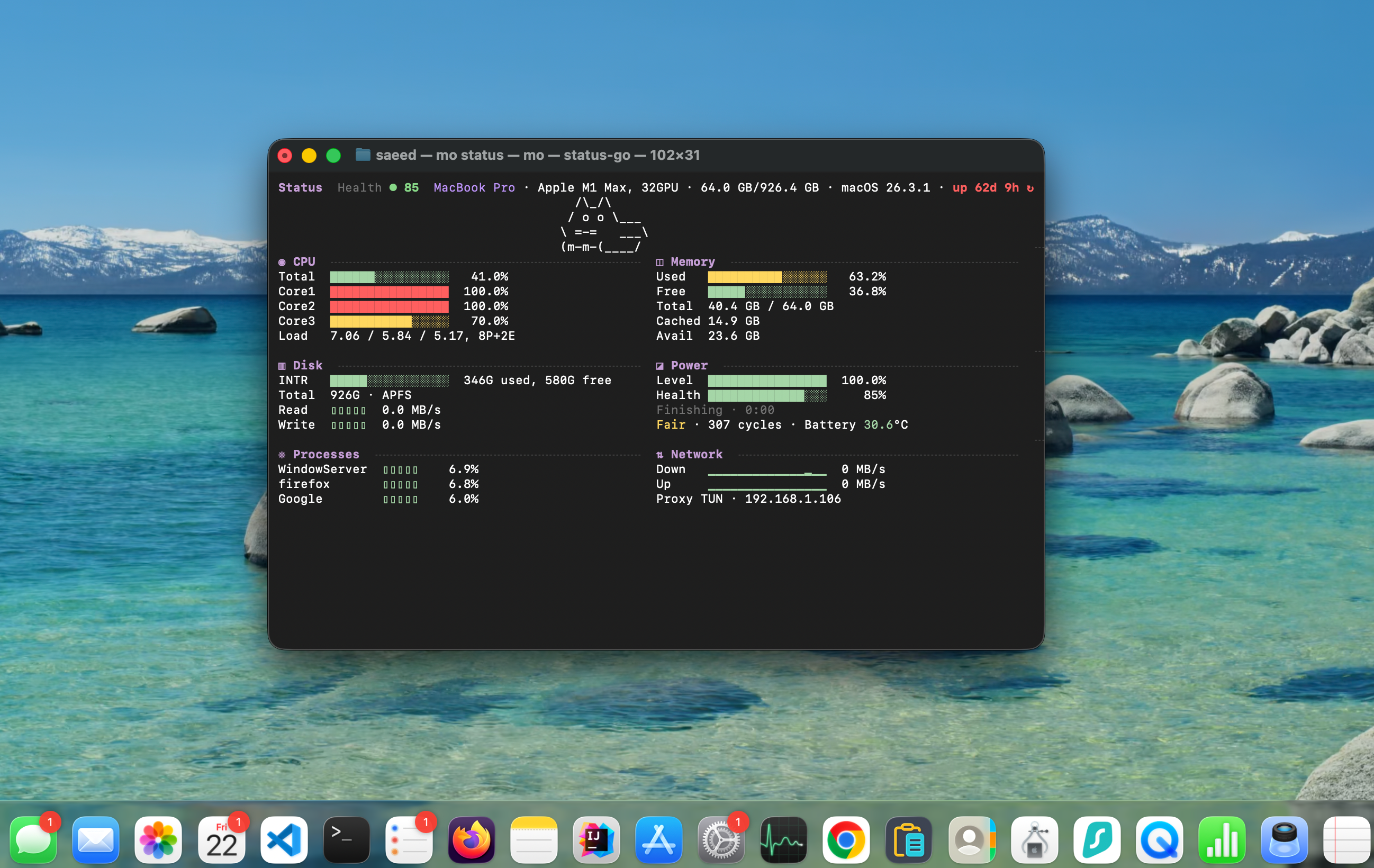
1mo analyze /Volumesmo status
1mo statusA live system dashboard showing real-time CPU, GPU, memory, disk, and network stats. The terminal equivalent of iStat Menus.
mo installer
1mo installerFinds and removes installer files — .dmg and .pkg files that tend to pile up in Downloads after you've already installed the app. Easy storage win.
Mole vs CleanMyMac
| Mole | CleanMyMac | |
|---|---|---|
| Price | Free | Paid / Subscription |
| Interface | Terminal (CLI) | GUI |
| Developer cleanup | Excellent | Limited |
| Automation / scripting | Yes | No |
| Malware scanning | No | Yes |
| Real-time monitoring | Yes | Yes |
| Disk visualization | Yes | Yes |
| Beginner-friendly | Moderate | Yes |
| Open-source | Yes | No |
The honest summary: CleanMyMac is better for non-technical users who want to click a button and be done. Mole is better for developers and power users who want more control, don't want to pay, and are comfortable with the terminal.
They are not really competing for the same user. If you know which category you fall into, the choice is straightforward.
Is Mole Safe to Use?
This is the right question to ask before running any tool that deletes files.
The code is public. Mole is open-source on GitHub under the MIT license. Anyone can read exactly what each command does. That level of transparency is something most paid cleaners cannot offer.
Dry-run exists for a reason. Before running mo clean, mo uninstall, or mo purge, always use --dry-run first. It shows you exactly what will be removed without touching anything. This is not optional advice — make it a habit.
Whitelists are supported. If there are caches or optimization rules you want to protect, both mo clean and mo optimize support --whitelist flags to mark them as off-limits.
Debug mode is available. Run mo clean --dry-run --debug to get detailed logs of what the command is evaluating. Useful if you want to understand exactly what is happening before committing.
A note of caution. Some users on Reddit have reported isolated issues after running cleanup commands. No tool that deletes files is completely risk-free. Review before you remove, especially on a machine you depend on for work.
General best practice: make sure Time Machine or another backup is running before using any Mac cleanup tool, Mole or otherwise.
Pros and Cons of Mole
Pros
- Completely free and open-source
- Covers cleaning, uninstalling, disk analysis, and monitoring in one tool
- Excellent for developer-specific junk like build artifacts and virtual environments
- Dry-run support makes it safe to explore
- No background processes or startup agents
- Scriptable — works well in automated workflows
- Interactive menu lowers the barrier for terminal newcomers
Cons
- No graphical interface
- Learning curve for users unfamiliar with the terminal
- No malware scanning
- Requires caution — always preview before deleting
- Less polished experience than paid GUI apps
Who Should Use Mole?
Good fit:
- Developers working with Node.js, Python, Xcode, Rust, or similar tools
- Power users comfortable in the terminal
- Anyone looking for a free, transparent CleanMyMac alternative
- Users who want to automate cleanup in scripts or workflows
- People who dislike subscriptions and want full control
Probably not the right fit:
- Beginners who have never used Terminal
- Users who want a visual, click-through experience
- Anyone who needs malware scanning built in
- Enterprise environments needing managed deployment
Alternatives to Mole
If Mole is not the right fit, here are some other options worth considering.
GUI alternatives:
AppCleaner — Free, simple, does one thing well. Drag an app onto it and it finds all the leftover files. No terminal required.
PearCleaner — A newer open-source GUI cleaner for Mac. More visual than Mole, still free.
OnyX — Free system maintenance tool with a traditional interface. Good for running maintenance scripts and tweaking system settings.
If you want a broader look at free Mac cleaner options, the best free Mac cleaner apps roundup covers several of these in more detail.
Final Verdict
Mole is one of the most capable free Mac cleanup tools available right now. It is not trying to win on polish — it wins on depth, transparency, and price.
For developers, it fills a gap that most GUI cleaners ignore entirely. The ability to clean build artifacts, uninstall apps completely, monitor system health, and analyze disk usage from a single command is genuinely useful. The interactive menu and dry-run support make it more approachable than it first appears.
For non-technical users, CleanMyMac or AppCleaner will serve you better. Mole rewards users who take the time to understand what they are running — and that is not everyone.
If you are comfortable in the terminal and tired of paying for cleanup software, Mole is worth installing today.
FAQ
Is Mole a GUI app?
No. Mole is a command-line tool that runs from the terminal using the mo command. It does include an interactive menu when you type mo on its own, which makes it easier to navigate without memorizing commands. But there is no standalone visual app to download.
Is Mole safe to use on macOS?
Yes, with the right approach. Mole is open-source, so the code is fully public and auditable. Always run commands with --dry-run first to preview what will be deleted before committing. Do not skip that step, especially on your main work machine.
How do I install Mole with Homebrew?
Run brew install mole in your terminal. After installation, verify it worked with mo --version.
Does Mole work on Apple Silicon Macs? Yes. Mole supports both Apple Silicon (M1, M2, M3, M4) and Intel Macs.
Can Mole replace CleanMyMac?
For most of what CleanMyMac does — cleaning, uninstalling, disk analysis, monitoring — yes. The main gaps are malware scanning and the visual interface. If you are a developer or power user comfortable with the terminal, Mole covers the important parts for free.
What does mo purge do?
It removes project build artifacts — folders like node_modules, dist, build, target, and venv that accumulate across coding projects. It can reclaim significant storage on a machine with many old or abandoned projects.
Is Mole good for developers?
Yes, it is probably the strongest use case for Mole. The mo purge command handles developer-specific cleanup that most GUI cleaners ignore, and the terminal-native workflow fits naturally into a developer's existing environment.
Can Mole uninstall apps completely?
Yes. mo uninstall removes the app itself along with launch agents, preferences, support files, and other leftovers. It is more thorough than dragging an app to the Trash.


Leave a Comment