Productivity
Pastebar: The Clipboard Hero You Didn’t Know You Needed
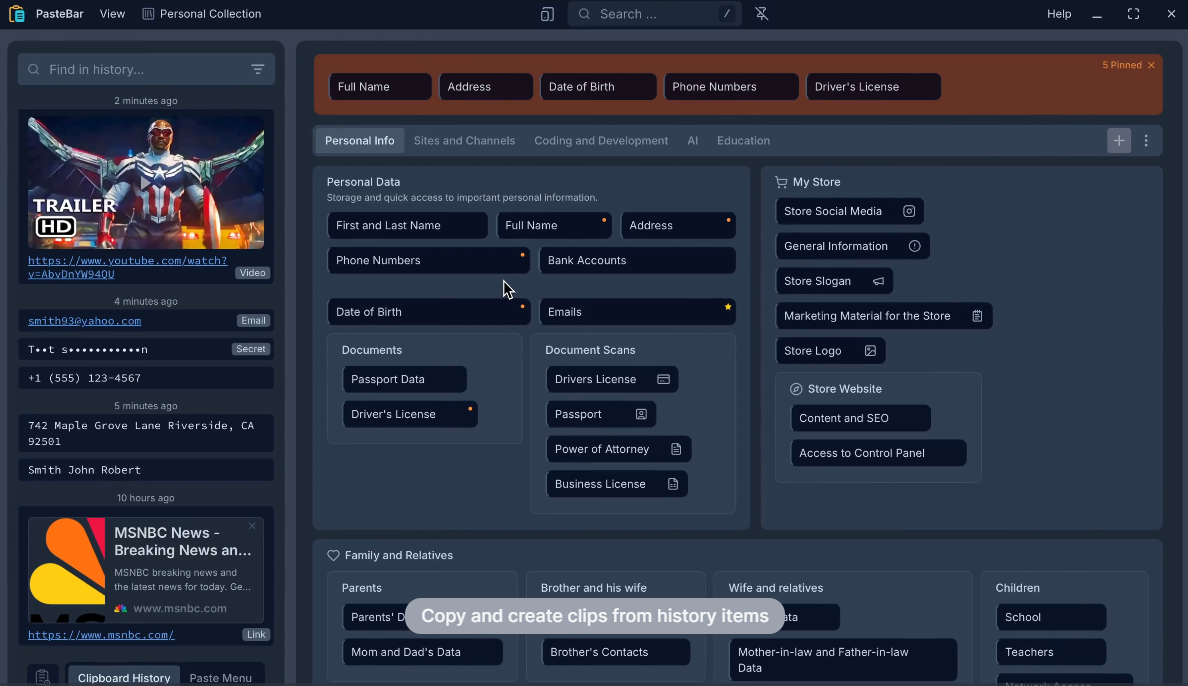
Let’s be real: as a developer, I copy and paste a lot. Code snippets, error messages, URLs, CSS rules, you name it. My clipboard is like a revolving door of random text. For years, I relied on macOS’s default clipboard history, which… well, it’s basic. If you’ve used it, you know it only remembers the last thing you copied. That’s like trying to build a house with a single tool. Then I found Pastebar, and my workflow hasn’t been the same since. Here’s why.
The Problem Every Developer Faces (But Ignores)
Before Pastebar, my clipboard life was messy. Imagine this: You copy a line of code, then quickly grab an API key from a note. But oh wait, you need that code snippet again. Too bad! It’s gone forever because you copied something else. Or worse: You’re debugging CSS, copy a class name, switch tabs to test it, and realize you accidentally copied the wrong selector. Cue the frustration.
Most clipboard managers try to fix this by saving a list of recent copies. But they’re either too complicated, ugly, or slow. I’ve tried a few, and they either felt like overkill (with features I’d never use) or looked like they were designed in 2005. As someone who cares about both efficiency and aesthetics (thanks, Apple), I wanted something simple, fast, and clean.
Enter Pastebar.
First Impressions: “Wait, It’s Free? And Open Source?!”
The first thing that caught my eye about Pastebar is that it’s free and open-source (you can check out the code yourself on GitHub). As a developer, that’s a huge plus. Open-source tools feel more trustworthy—you can see how they work under the hood. Plus, no sneaky subscriptions or hidden fees.
Pastebar sits quietly in your Mac’s menu bar. No flashy windows, no annoying pop-ups. You click the icon, and a dropdown shows your clipboard history. But it’s not just a simple list—it’s packed with features like saved custom clips, boards, tabs, and collections. At first glance, it looks minimal, but once you start using it, you realize how powerful it is.
What sold me immediately was how fast it is. There’s no lag when opening the history, and everything feels instant. When you’re knee-deep in code, you don’t want to wait half a second for your clipboard manager to catch up. Pastebar gets this.
Features That Actually Matter (No Gimmicks)
Here’s what makes Pastebar stand out for me as a developer:
- Search Your Clipboard History
This is a game-changer. Let’s say you copied a GitHub URL three hours ago. Instead of scrolling through dozens of entries, just type “github” in Pastebar’s search bar. Boom—there it is. It even filters out duplicates, so you’re not sifting through the same text five times. - Keyboard Shortcuts for Everything
I live by keyboard shortcuts. With Pastebar, you can bring up your clipboard history with a hotkey (I useCmd + Shift + V), search, and paste items without touching the mouse. It’s seamless for coding marathons. - Pin Important Items
Found yourself copying the same API endpoint or CSS variable repeatedly? Pin it to the top of your history. No more digging through the clutter. - Sync Across Devices (Yes, Even iPhone)
If you use multiple Macs or an iPhone, Pastebar syncs your clipboard history via iCloud. I often start a task on my MacBook and finish it on my iMac. Now my clipboard comes with me. - Collections, Tabs, and Boards for Organization
This is where Pastebar really shines. You can organize your clips into collections, tabs, and boards. For example, I have a collection for personal info (like addresses, emails and phone numbers for me and my family), another for coding snippets, and even one for my favorite websites and channels. Each collection can hold text, images, or documents, making it easy to keep everything in one place. - Handles Images Too!
I was surprised to learn Pastebar doesn’t just save text—it also stores images you copy. This is handy when I’m working on UI fixes and need to reference a screenshot I took earlier. No more digging through folders to find that one blurry screenshot of a broken button.
The Little Things That Make a Big Difference
What I love most about Pastebar is how it handles the small stuff:
- Clean Design: The UI is minimal and matches macOS’s style. No clunky menus or distracting colors.
- Privacy First: Your clipboard data stays on your devices. No cloud storage (unless you enable iCloud sync), which matters when you’re handling sensitive code or credentials.
- Open-Source Peace of Mind: Since the code is public, you know there’s no shady stuff happening behind the scenes. For developers, this is gold.
- Organizing Made Easy: The ability to create collections, tabs, and boards has been a lifesaver. I can separate work from personal stuff, keep track of important documents, and even save images for later use. It’s like having a mini filing system for my clipboard.
Final Verdict: My Clipboard’s New Best Friend
Pastebar isn’t the most powerful clipboard manager out there—and that’s the point. It does exactly what it promises: saves your text and image history, lets you find it fast, and stays out of your way. As a developer, it’s cut down on so much wasted time and frustration.
Is it life-changing? No. But it’s one of those tools that quietly makes your daily grind smoother. After using it for a couple of months, I can’t imagine going back to the dark ages of losing my clipboard history.
The fact that it’s free and open-source is the cherry on top. You’re not just getting a great tool—you’re supporting a project built by people who care about making workflows better.
If you’re like me—someone who copies code, commands, or screenshots all day—give Pastebar a shot. It’s like giving your clipboard a superpower you didn’t know it needed.
Note: this blog post was sponsored by Dolda Uppgifter.
Leave a Comment