Article
Rectangle Pro: Is the $9.99 Upgrade Actually Worth It?
If you already use Rectangle, you've probably seen the prompt asking if you want to try Rectangle Pro. And you've probably closed it and moved on. It's free, it works great, why pay?
That's a fair question. The honest answer is: for most people, the free version is enough. But there's a specific type of user who will get real value out of the upgrade — and if you're that person, $9.99 is an easy decision.
This post breaks down exactly what you get, what's actually useful, and who should upgrade.
If you haven't tried Rectangle yet, check out our guide for installing and using Rectangle first — you'll want to start with the free version before deciding whether to pay for more.
What the Free Version Already Does
Before talking about what Pro adds, it's worth being clear about how much you already get for free.
Rectangle (free) lets you snap windows to halves, thirds, quarters, corners, and full screen using drag-to-edge or keyboard shortcuts. You can customize every shortcut. It supports multiple monitors. And it has a clever feature where repeating the same shortcut cycles the window through different sizes — useful if you want to quickly try a few layouts without memorizing separate commands.
For most people, that's everything they need. The free version is not a "lite" version that leaves you wanting more. It's genuinely complete for everyday window management.
So when you're deciding whether to upgrade, the question isn't "is Pro better?" It is. The question is: will you actually use what it adds?
What Rectangle Pro Adds
Rectangle Pro is a separate app — not just an unlock. You download it, get a free 10-day trial, and pay $9.99 to keep it. One-time purchase, no subscription. A single license works on up to three Macs.
Here's what's actually new:
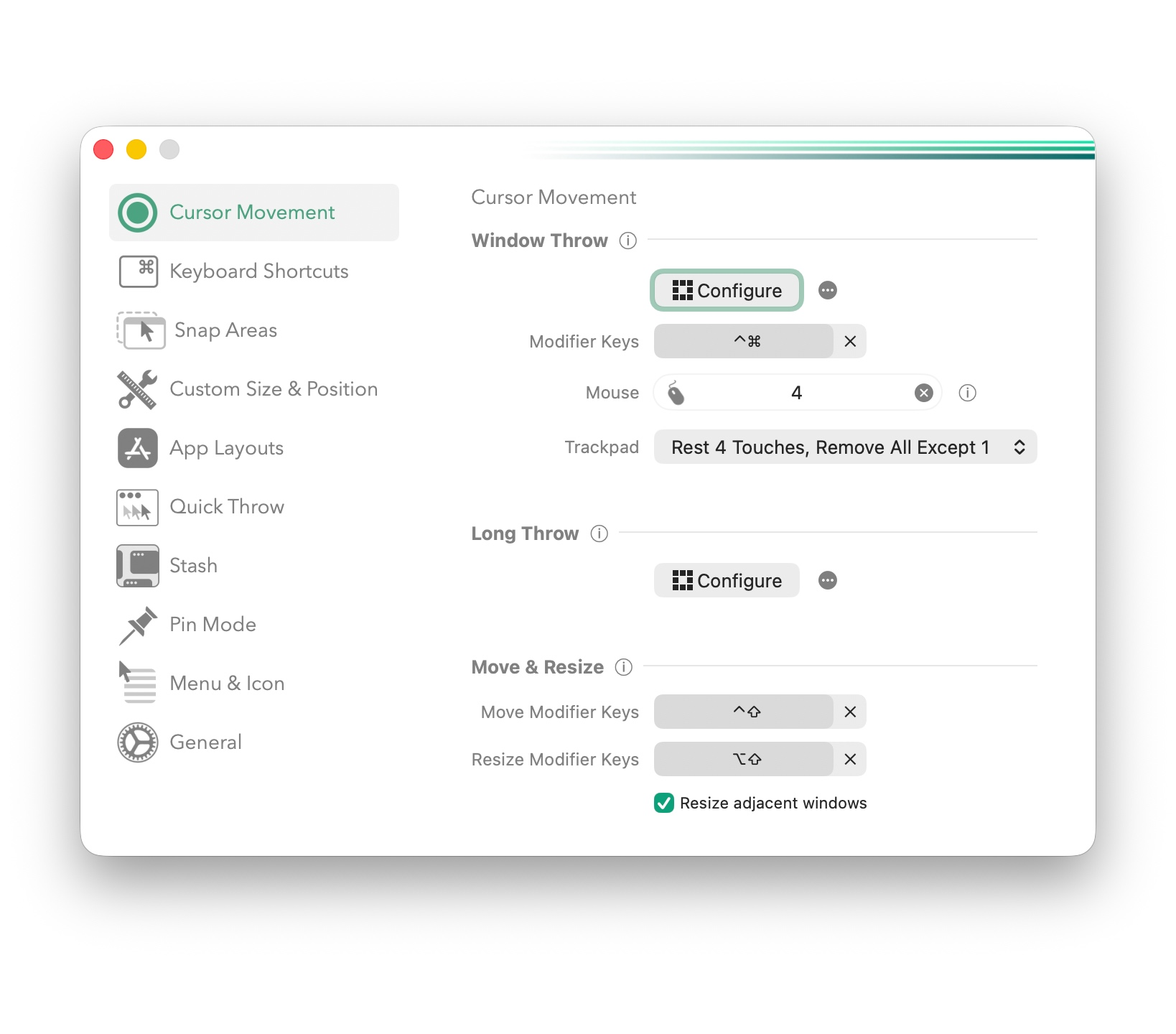
Window Throw
This is the headline feature and the one most people mention first.
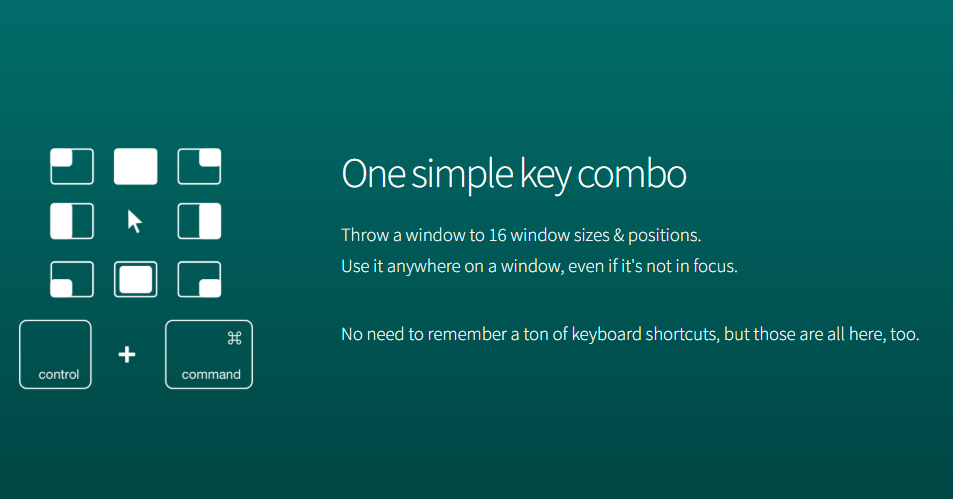
Hold Control + Command, move your cursor over any window — even one that's running in the background and not currently focused — and nudge the cursor in a direction. The window snaps to a position based on where you moved. Up snaps it to the top half. Left snaps it to the left half. Up and left snaps it to the top-left corner. And so on.
The key thing: you don't have to click on the window first. You can move a background window without bringing it to the front. That's genuinely useful when you're trying to arrange a workspace without constantly switching focus.
There's also Quick Throw, which is a faster, lighter version of the same idea using the Option key. Less precise, but faster once you get the feel for it.
App Layouts
This is the feature that changes how you set up your workspace every morning.
You arrange all your windows exactly how you want them — browser on the left two-thirds, notes on the right third, Slack at the bottom — then save that as a layout. Assign it a keyboard shortcut. The next time you want that setup, one shortcut snaps everything into place instantly.
You can also set layouts to activate automatically when a display connects or disconnects. So if you plug into an external monitor at your desk, your full work layout loads on its own. When you unplug and go back to just your laptop, a different layout kicks in automatically. This alone is worth the upgrade if you regularly switch between laptop-only and a desk setup.
Custom Snap Targets
The free version snaps windows to fixed positions — halves, thirds, quarters. Pro lets you define your own snap zones anywhere on screen.
Want a zone that puts a window at exactly 60% width, offset slightly from the left? You can do that. Want a floating note window always pinned to the same corner at a specific size? You can do that too. If you have a non-standard monitor or a very specific workflow, this matters.
Edge Stash
Hide a window by pushing it to the edge of your screen. It slides off and disappears. Move your cursor to that edge later and it slides back.
This is useful if you have a reference window — a dictionary, a calculator, a chat — that you want nearby but out of the way. It's not essential, but once you use it, you'll miss it if it's gone.
iCloud Sync
All your shortcuts, custom snap targets, and app layouts sync across your Macs automatically. If you use more than one Mac, this is a real time-saver. Setting up window management preferences from scratch on a second machine is tedious. iCloud sync removes that entirely.
Cursor Gestures for Any Window
Hold Control + Command over any window and move the cursor to snap it — even background windows, as mentioned above. This is the same mechanic as Window Throw but worth naming separately because it's so different from how window managers usually work. Normally you have to bring a window into focus before you can move it. Pro removes that requirement.
What's the Same in Both Versions
Some things people assume are Pro-only are actually in the free version too:
- Drag-to-snap on screen edges
- All the standard snap positions (halves, thirds, quarters, corners)
- Fully customizable keyboard shortcuts
- Multi-monitor support
- Portrait display support
- Cycling through window sizes by repeating a shortcut
If those are all you need, save your $9.99.
Free vs Pro: Side by Side
| Feature | Rectangle (Free) | Rectangle Pro ($9.99) |
|---|---|---|
| Snap to halves, thirds, quarters | Yes | Yes |
| Drag-to-snap | Yes | Yes |
| Customizable shortcuts | Yes | Yes |
| Multi-monitor support | Yes | Yes |
| Cycle window sizes | Yes | Yes |
| Window Throw (snap background windows) | No | Yes |
| App Layouts | No | Yes |
| Display-aware auto layouts | No | Yes |
| Custom snap targets | No | Yes |
| Edge Stash | No | Yes |
| iCloud sync | No | Yes |
| Cursor gestures | No | Yes |
| License devices | Unlimited | Up to 3 |
Who Should Upgrade
Upgrade if you:
- Switch between laptop-only and an external monitor regularly — display-aware layouts are a genuine time-saver
- Use more than one Mac and want your settings to sync automatically
- Have a specific workspace setup you rebuild from scratch every morning
- Work with lots of windows at once and want to move background windows without switching focus
- Have a non-standard monitor size and want custom snap zones
Stick with free if you:
- Just want basic window snapping and keyboard shortcuts
- Use a single Mac with a fixed setup
- Don't have a daily routine of arranging the same apps into the same positions
- Are happy cycling through the built-in snap positions
The honest truth: most casual Mac users will not use App Layouts or custom snap targets. They'll upgrade, try it for a few days, and realize the free version already covered everything they actually do.
But if you're the kind of person who docks their laptop every morning and re-opens the same five apps in the same positions — that's who Pro was built for.
How Does It Compare to Magnet?
Magnet ($4.99) and Rectangle Pro ($9.99) often come up together, and it's worth a quick comparison.
Magnet does not have app layouts or custom snap targets. It also doesn't have Window Throw or cursor gestures. The main reason to pick Magnet over Rectangle Pro is that Magnet is on the Mac App Store — which matters if you're on a managed corporate Mac or just prefer App Store apps.
If you're choosing purely on features, Rectangle Pro wins at every level. If App Store availability is important to you, Magnet is the better call.
The Trial Makes This an Easy Decision
Rectangle Pro comes with a free 10-day trial. You don't need to decide anything upfront. Download it, use it for ten days, and see whether the Pro features change how you work.
Most people fall into one of two camps: they use App Layouts every day and can't imagine going back, or they realize after a week that the free version was already doing everything they needed.
Either outcome is fine. That's what the trial is for.
FAQ
Can I go back to the free version if I don't want Pro? Yes. Rectangle and Rectangle Pro are separate apps. If you try Pro and decide it's not for you, just switch back to the free version. Your shortcuts carry over.
Does Rectangle Pro replace Rectangle or do I need both? It replaces it. Rectangle Pro is a standalone app with everything the free version has, plus the Pro features. You don't need both installed.
Is the $9.99 a one-time price or a subscription? One-time purchase. No subscription, no annual renewal, no in-app purchases. One license covers up to three Macs.
Does Rectangle Pro work on Apple Silicon Macs? Yes. It runs natively on both Apple Silicon (M1, M2, M3, M4) and Intel Macs.
Is there a student or education discount? Not currently listed on the Rectangle Pro site.
How often does it get updated? Fairly regularly — roughly every few weeks, mostly bug fixes and compatibility updates for new macOS versions.
The Bottom Line
Rectangle (free) is excellent. It covers what most people need and there's no pressure to upgrade.
Rectangle Pro is worth it if you switch between display setups regularly, use multiple Macs, or have a daily workspace routine you want to automate. The App Layouts and display-aware triggers alone justify the price for that kind of user.
The safest move: download the free version first if you haven't already. Use it for a week. If you find yourself rebuilding the same window layout every morning, that's your sign to try the 10-day Pro trial.
Leave a Comment