Utility
Thaw Review: The Best Free Bartender Alternative for Mac
If you've used a Mac for more than a year, you know the feeling. You install a few apps, and suddenly your menu bar is packed with tiny icons. Some you use every day. Most you forgot were even there. Finding the one icon you need turns into a tiny hunt every time.
Bartender has been the go-to fix for this problem for years. But it costs money, and it isn't open source. That's led more Mac users to look for a free option that does the same job. One of the newest contenders is Thaw, an actively maintained fork of a popular open-source app called Ice.
In this review, we'll cover what Thaw actually does, its main features, how it stacks up against Bartender, and who should consider switching. By the end, you'll know whether it's worth installing on your own Mac.
What Is Thaw?
Thaw is a free, open-source app for organizing your Mac's menu bar. It's released under the GPL-3.0 license, which means the code is public and anyone can inspect or contribute to it.
Thaw isn't a brand-new project built from scratch. It's a fork of Ice, an open-source menu bar manager created by developer Jordan Baird. When Ice's development slowed down and stopped getting updates, another developer, who goes by stonerl, forked the project and kept it moving. That's how Thaw was born.
A "fork" just means someone copied the original project's code and started building on it independently. This happens a lot in open-source software when the original developer moves on but the community still wants the project to keep improving. Thaw picked up where Ice left off, fixing bugs and keeping the app working on newer versions of macOS.
Key Features
Hide and Show Menu Bar Items
Thaw's main job is letting you hide the icons you rarely use while keeping your favorites visible. Hidden items don't disappear completely. You can bring them back with a hover, a click, or a scroll on the menu bar, and Thaw can automatically hide them again after you're done.
Drag-and-Drop Organization
You can rearrange menu bar icons just by dragging them where you want. There's no settings menu to dig through or complicated setup step. Grab an icon and move it.
Appearance Customization
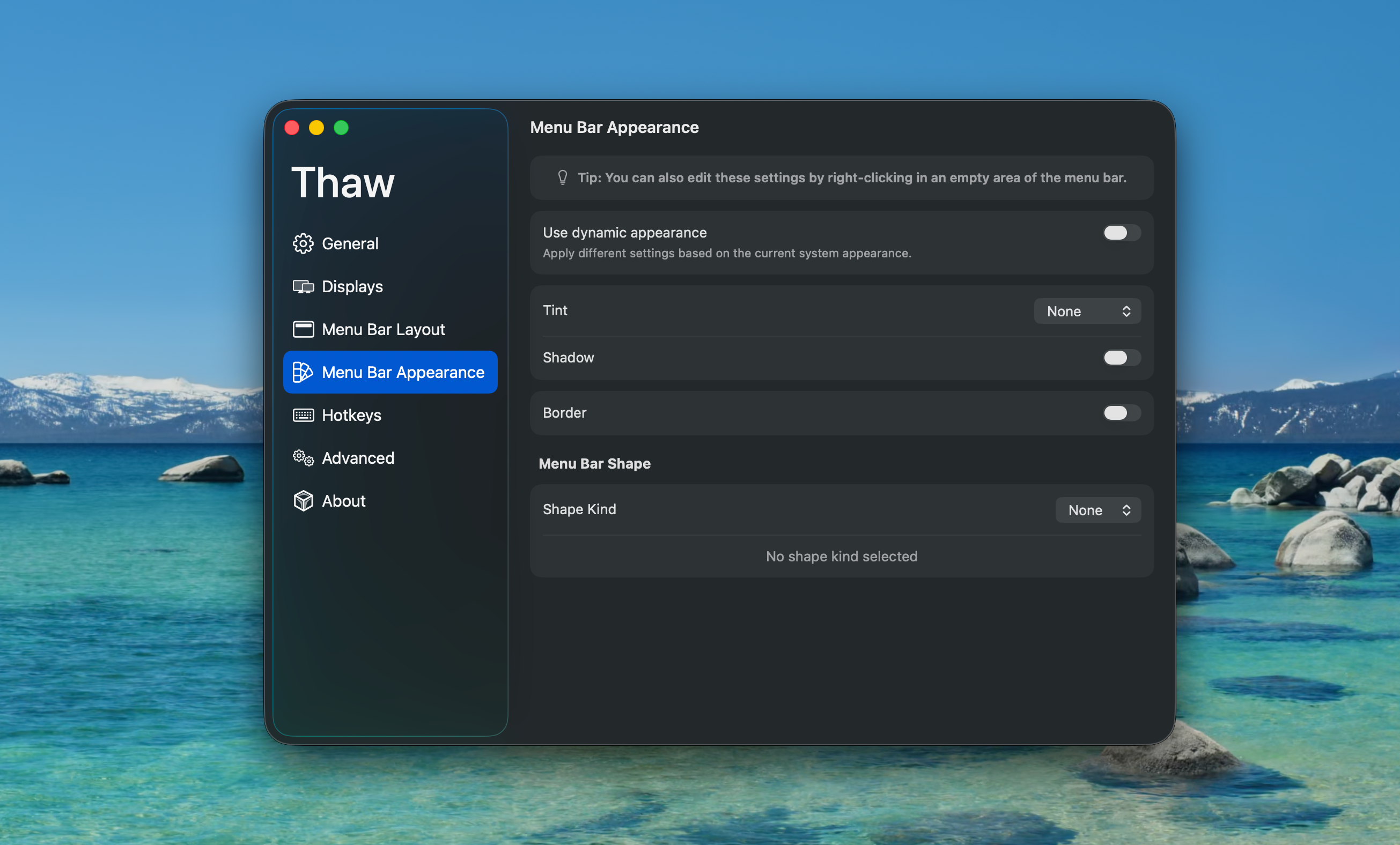
If you want your menu bar to look different, Thaw lets you adjust things like background tint, shadows, borders, and the overall shape of the bar. You can set separate looks for light mode and dark mode. None of this is required to use the app. It's just there if you want it.
Search for Menu Bar Items
If your menu bar has a lot of hidden icons, Thaw includes a search feature so you can find the one you need by typing instead of scanning through everything by eye.
ThawBar for Notched MacBooks
Newer MacBooks have a camera notch that eats into the menu bar's space, which can push icons out of view. Thaw includes a feature called ThawBar that displays hidden items in a separate row below the main menu bar, so they don't get lost behind the notch. This mainly matters if your MacBook has a notch. Older or non-notched Macs won't need this feature.
Import Settings from Ice
If you're already using Ice, Thaw includes a built-in importer that can bring over your existing layout, styling, and hotkeys the first time you launch the app. You won't have to rebuild your setup from scratch.
Installation and Setup
There are two ways to install Thaw.
Homebrew: If you already use Homebrew, installing the stable release is one line in Terminal:
1brew install thawManual installation: If you'd rather not use Homebrew, you can download the latest release directly from Thaw's GitHub page, unzip it, and drag the app into your Applications folder.
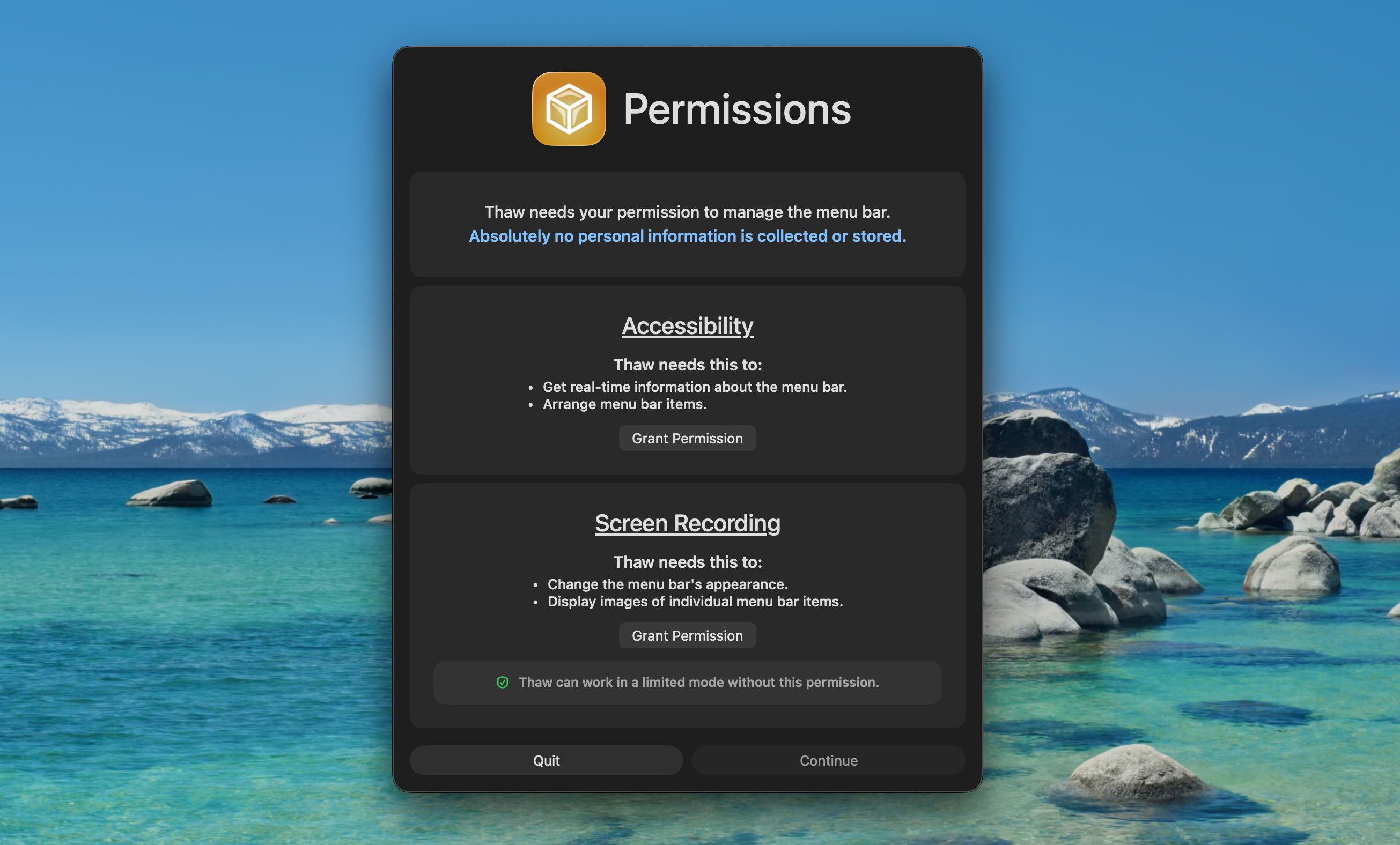
Permissions: The first time you open Thaw, macOS will ask you to grant Accessibility and Screen Recording permissions. This might look alarming, but it's normal for this type of app. Thaw needs these permissions to detect and control the icons in your menu bar. Since the app is open source, anyone can check the code to confirm it's only using these permissions for that purpose, and everything runs locally on your Mac.
Thaw vs Bartender
| Feature | Thaw | Bartender |
|---|---|---|
| Price | Free | $16 per month |
| Open source | Yes | No |
| Hide menu bar items | Yes | Yes |
| Search | Yes | Yes |
| Appearance options | Yes | Yes |
| Active development | Yes | Yes |
Bartender has been around much longer and has a large, established user base. It's a polished, commercial product with features built up over years, including context-aware presets and AppleScript support for advanced automation.
Thaw is newer, but it already covers most of what people actually use a menu bar manager for: hiding icons, rearranging them, and keeping things tidy. It does this without a price tag and without closed-source code. If you're switching from Ice, Thaw is the more natural next step since it can import your existing setup directly.
Neither app is objectively "better." It depends on whether you value Bartender's maturity and extra automation tools, or Thaw's free price and open-source code.
Performance and Daily Use
Thaw is lightweight and doesn't take long to set up. Once installed, it sits quietly in your menu bar and responds quickly when you click, hover, or search for an item.
How well it performs can depend on a few things: your Mac model, how many menu bar items you have running, and which macOS version you're on. Since Thaw is actively updated, most bugs get fixed fairly quickly after they're reported. Still, as with any young project, don't expect it to be flawless from day one.
Pros and Cons
Pros
- Free forever, no subscription
- Open source, so the code is public
- Active development with frequent updates
- Easy migration from Ice
- Solid appearance customization
- Installable through Homebrew
Cons
- Smaller community than Bartender
- Newer project with less of a track record
- Some planned features, like menu bar item groups, are still in progress
- Occasional bugs are more likely than with a mature commercial app
Who Should Use Thaw?
Thaw makes the most sense for:
- People with a crowded menu bar who want it organized
- Developers and power users who run a lot of background apps
- Anyone who prefers open-source software over paid, closed-source tools
- Current Ice users looking for an actively maintained option
- Anyone who wants to replace Bartender without paying for it
If you only have two or three menu bar icons, you probably don't need a dedicated manager at all. Thaw is built for people juggling a lot more than that.
Final Verdict
Thaw picks up where Ice left off and keeps building. It gives you free licensing, open-source code, and the core features people actually want from a menu bar manager: hiding, organizing, and customizing.
If you want an actively maintained, free way to clean up your Mac's menu bar, Thaw is worth trying. Bartender remains a solid, polished commercial option with a longer track record, but a lot of users will find that Thaw covers everything they need without spending anything.
Frequently Asked Questions
Is Thaw completely free?
Yes. Thaw is released under the GPL-3.0 license, which means it's free to use and the source code is open for anyone to review.
Is Thaw safe to use?
Thaw is open source, so its code can be checked by anyone. It requests Accessibility and Screen Recording permissions because that's how macOS lets an app detect and control menu bar items. These are standard requirements for this category of app.
What is the difference between Thaw and Ice?
Thaw is a fork of Ice, created after Ice's development slowed down. Thaw continues fixing bugs and keeping the app compatible with new macOS releases.
Can I move my settings from Ice?
Yes. Thaw includes a built-in importer that offers to bring in your existing Ice layout, styling, and hotkeys the first time you open the app.
Leave a Comment