Productivity
Best Window Management Apps for Mac (Free & Paid)
If you use your Mac for work, you probably have a lot of windows open at once. A browser, a notes app, maybe Slack or email on the side. Getting all of those to sit where you want them - without spending time dragging and resizing - is harder than it should be.
The good news is there are some great apps that fix this. They let you snap windows into place with a keyboard shortcut, save your favorite layouts, and switch between setups in seconds.
This guide covers the best window management apps for Mac right now - free and paid - so you can pick the one that fits how you actually work.
| App | Price | Best For | Keyboard Shortcuts | Saved Layouts | |
|---|---|---|---|---|---|
| Rectangle | Free | Most users | ✓ | × | |
| Rectangle Pro | $9.99 one-time | Layout power users | ✓ | ✓ | |
| Swift Shift | Free | Mouse-driven users | ✓ | × | |
| Magnet | $4.99 one-time | App Store buyers | ✓ | × | |
| Moom | $15 one-time / $8 upgrade from Moom 3 | Power Users | ✓ | ✓ |
What's Wrong With macOS Built-In Tools?
The native tools aren't bad — they're just limited.
Split View lets you work with two apps side by side. You hold the green full-screen button on a window and pick a second app to fill the other half. It works, but you're locked into a 50/50 split with no flexibility.
Stage Manager was added in macOS Ventura. It groups your open apps and shows them as thumbnails on the left side of your screen. Some people love it. A lot of people find it confusing and turn it off after a day.
Mission Control gives you a bird's-eye view of everything open on your desktop. It's great for switching between apps, but it doesn't help you arrange windows next to each other.
None of these let you snap a window to a specific corner with a keyboard shortcut. None of them let you save a layout and reload it the next day. If that's what you need, you need a third-party app.
The Best Window Management Apps for Mac
1. Rectangle — Best Free Option
Rectangle is the most popular free window manager for Mac, and it earns that reputation. It's open source, free to download, and does exactly what most people need.
The idea is simple. You press a keyboard shortcut and your active window snaps into position — left half, right half, top-left corner, full screen, and more. The default shortcuts are sensible out of the box, and you can change any of them if they clash with other apps you use.
Setup takes a few minutes. After that you barely know it's running.
If you want to get the most out of it — including the shortcuts worth learning first and tips for multi-monitor setups — take a look at our Rectangle for Mac setup guide and best shortcuts.
Pros:
- Completely free and open source
- Lightweight — doesn't slow your Mac down
- Easy to set up in minutes
- Keyboard shortcuts are fully customizable
- Good multi-monitor support
Cons:
- No saved layouts
- No custom snap zones
- Fewer options than paid tools
Who it's for: Anyone who wants fast, keyboard-driven window snapping without paying anything.
2. Rectangle Pro — Best Step Up From Rectangle
Rectangle Pro is the paid version made by the same developer as Rectangle. It keeps everything from the free version and adds a serious set of extra features for people who want more control.
The standout feature is Window Throw. Press one key combo and your active window moves to any of 16 different sizes and positions. It works even on windows that aren't currently in focus, which saves a lot of back-and-forth clicking. You don't need to memorize a different shortcut for every position — one combo cycles through them all.
Beyond that, Rectangle Pro adds features you won't find in the free version:
Custom snap targets let you define your own snap zones anywhere on the screen. Pair that with the snap panel — a small configurable panel for quick access to your most-used positions — and arranging windows becomes very fast.
Workspace layouts let you arrange an entire set of apps with a single shortcut. You can also set layouts to activate automatically when a display connects or disconnects — handy if you work on a laptop that regularly hooks up to an external monitor.
Edge hiding lets you push windows off the edge of your screen. They slide back into view when your cursor touches that edge — a clean way to keep things accessible without cluttering your desktop.
Todo mode gives you a focused work area with more configuration options than the free Rectangle version.
Rectangle Pro also has more stock keyboard shortcuts than any other window manager on this list, including Windows-style arrow shortcuts, multi-window shortcuts, and fill left/right commands. You can load your existing shortcuts straight from Rectangle and sync your configuration over iCloud.
The price is a one-time payment of $9.99. No subscription.
Pros:
- Window Throw works on unfocused windows
- Custom snap targets anywhere on screen
- Workspace layouts with auto-activation on display connect/disconnect
- Edge hiding for a cleaner desktop
- More keyboard shortcut options than any other app here
- iCloud sync for your configuration
- Loads your existing Rectangle shortcuts
- One-time price, no subscription
Cons:
- Costs money when the free version covers most use cases
- Some features take time to configure properly
- More than most casual users will ever need
Who it's for: Rectangle users who want deeper control — especially those who switch between laptop and external displays regularly, or want to stop manually arranging windows every morning.
3. Swift Shift — Best for Mouse Users
Swift Shift works differently from the others on this list. Instead of shortcuts that snap windows to preset positions, it lets you move and resize windows by holding a modifier key and using your mouse — no need to grab the title bar or hunt for a tiny resize corner.
Hold your shortcut and drag anywhere in the window to move it. Use the mouse button combination to resize it. By default it resizes from the bottom-right corner, but you can turn on Quadrant mode, which resizes from whichever edge or corner is closest to your mouse. It makes resizing feel much more natural.
If you want to match the behaviour of some Linux distros, you can include mouse buttons in your shortcuts for moving and resizing windows.
It's also fully open source — you can check the code, open issues, or contribute on GitHub. It runs silently in the background with no menu bar clutter unless you want it, and you can set it to launch at login with one toggle.
The price is pay-what-you-want, including free.
You can see more on our Swift Shift page.
Pros:
- Free and open source
- Intuitive modifier + mouse approach — no snap shortcuts to memorize
- Quadrant smart resizing feels natural
- Optional mouse button shortcuts for Linux-style behaviour
- Runs silently in the background
- Lightweight and easy to set up
Cons:
- No preset snap zones (halves, thirds, corners)
- Not ideal if you prefer pure keyboard-driven workflows
- Fewer layout features than Rectangle or Moom
Who it's for: People who prefer controlling windows with their mouse rather than memorizing keyboard shortcuts.
4. Magnet — Best App Store Option
Magnet is one of the most well-known window managers on the Mac App Store. It gives you three ways to snap windows into place — drag them to a screen edge, use a keyboard shortcut, or pick a position from the menu bar.
The drag-to-snap zones are intuitive once you know them. Drag a window to a side edge and it snaps to a half. Drag to a corner and it snaps to a quarter. Drag to the top edge to maximize, or the bottom edge to create thirds — slide along the bottom to expand a window into two thirds.

It supports fullscreen, halves, thirds, quarters, and up to six external displays at once. It also adapts to vertical screens, shifting its snap zones to match portrait orientation.
The main reason to choose Magnet over Rectangle isn't features — Rectangle covers most of the same ground for free. The reason is the App Store. If you prefer buying and updating apps through Apple's ecosystem, Magnet is a solid pick at $4.99.
Pros:
- Three ways to snap — drag, keyboard shortcut, or menu bar
- Intuitive drag-to-snap zones for halves, thirds, quarters, and fullscreen
- Supports up to six external displays
- Adapts to vertical/portrait screens
- Available on the Mac App Store
Cons:
- Costs money when Rectangle does most of the same things for free
- No saved workspace layouts
- No custom snap zones
Who it's for: People who want a reliable window manager they can buy and update through the Mac App Store.
5. Moom — Best for Power Users
Moom is the most feature-rich window manager on this list. It's built for people who want complete control over how their workspace is arranged — and it gives you several different ways to get there.
The most visible feature is the pop-up palette. Hover your mouse over the green button on any window and a small palette appears. You can add up to 61 separate actions to it — layouts, grids, folders — and fully customize what shows up.
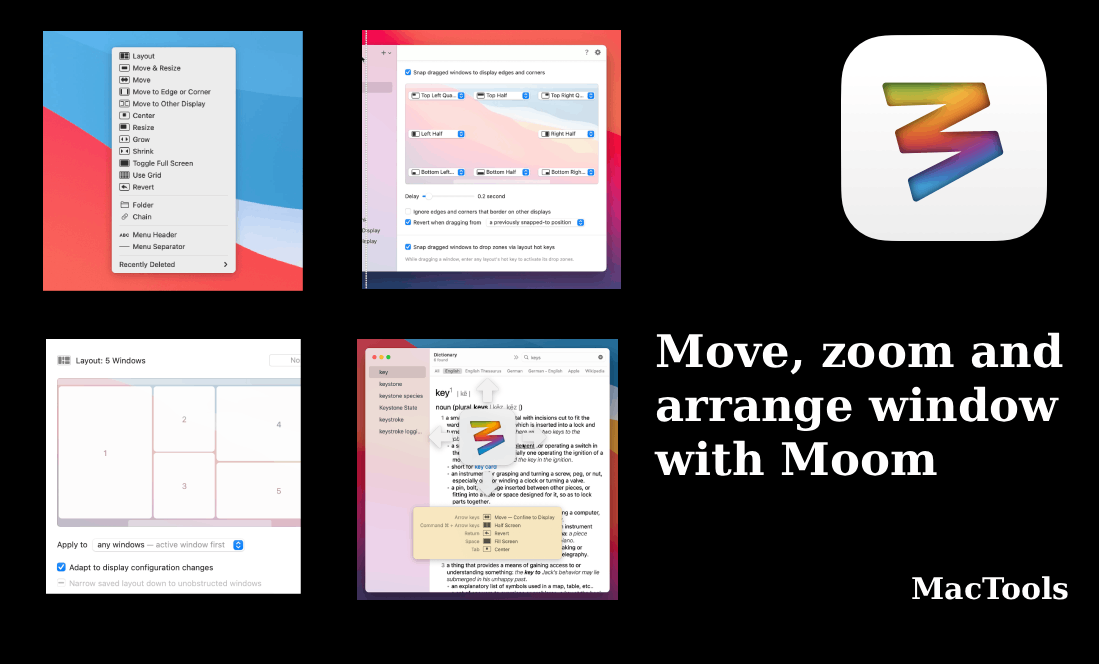
But Moom goes much deeper than that:
Saved Layouts let you arrange your windows exactly how you want and restore the whole setup with one click. There are two types — app-based layouts that remember which apps go where, and "any window" layouts that move your most recently used windows into position regardless of which apps they are.
Snap Zones let you drag a window to the edge of your screen and drop it into a preset position. Each zone is fully customizable.
Drop Zones take this further. Attach a saved layout to a snap zone, and when you drag a window there, all the positions from that layout appear as drop targets. One drag, multiple placement options.
Chains are one of Moom's most unique features. Group two or more actions together and trigger them in one step — for example, moving a window to a second monitor and resizing it at the same time. Chains can also work as loops, cycling through a sequence of actions each time you trigger them.
Keyboard control is fully supported. You can move, resize, center windows, use the on-screen grid, and access every custom action without touching your mouse.
Moom also has a hover-to-move feature. Hold a modifier key and move your mouse to reposition or resize any window — even one running in the background — without clicking.
Moom 4 (the current version) costs $15 and is available directly from the developer at Many Tricks. The older Moom Classic is still available on the Mac App Store. A free trial is available before you buy.
Pros:
- Extremely customizable — more than any other app on this list
- Two types of saved layouts (app-based and any-window)
- Snap zones, drop zones, and chains for complex workflows
- Works with both mouse and keyboard
- Hover-to-move for background windows
- Up to 61 actions in the pop-up palette
- Free trial available
Cons:
- Takes real time to configure properly
- More than most casual users will ever need
- Moom 4 is only available direct from the developer, not the App Store
Who it's for: Power users who want the deepest level of control over their windows and don't mind spending time setting things up.
How to Pick the Right One
The choice usually comes down to three things: how you prefer to work, how much control you need, and whether you want to pay.
- Free and keyboard-driven → Rectangle
- Free and mouse-driven → Swift Shift
- Paid, with saved layouts and deep control → Rectangle Pro ($9.99) or Moom ($15)
- Prefer the App Store → Magnet ($4.99)
For most people, Rectangle is the right starting point. It's free, fast, and covers the most common use cases. You can always move to a paid option later if you need more.
If you already know you want saved workspace layouts, go straight to Rectangle Pro or Moom. Both are well-built and worth the price.
Final Thoughts
Window management sounds like a small thing. But if you spend a lot of time on your Mac, having your windows snap into place in half a second — instead of dragging them by hand — adds up over a week.
Start with Rectangle. It's free, it works really well, and the learning curve is almost flat. If you find yourself wanting more — saved layouts, custom zones, mouse-driven control — the paid options are all reasonably priced and genuinely useful.
The main thing is to stop resizing windows by hand. There's a better way, and it takes about five minutes to set up.
Leave a Comment