Audio
FluidVoice: The Free Open-Source Alternative to MacWhisper
If you talk faster than you type, you've probably looked into dictation apps before. Most of the good ones cost money every month. Wispr Flow runs about $15 a month. Others charge similar rates. That adds up fast if you just want to speak instead of type.
FluidVoice is a different kind of answer. It's a free, open-source dictation app for Mac that runs entirely on your machine. No monthly fee, no account, and your voice never has to leave your computer. A solo developer built it after getting tired of paying for Wispr Flow, and in under a year it has grown to a real community with thousands of GitHub stars and an active Discord.
In this review, we'll cover what FluidVoice actually does, walk through its main features, set it side by side with MacWhisper, and help you figure out if it's the right tool for you.
What Is FluidVoice?
FluidVoice is a free, open-source dictation app for macOS, released under the GPL-3.0 license. That means the full source code is public, and anyone can read it, check it, or contribute to it.
The core idea is simple. You press a hotkey, you speak, and the words show up as text in whatever app you're using. All the speech-to-text work happens on your Mac itself. Nothing gets uploaded to a server unless you choose to turn that on.
The app also includes something called Fluid Intelligence. This is an optional local AI layer that cleans up your dictated text: fixing punctuation, capitalization, and formatting, all still running on your machine. It's built and maintained separately from the main open-source app, so it isn't open source itself, but it works entirely offline and doesn't send your text anywhere either.
Key Features
Multiple Speech Models
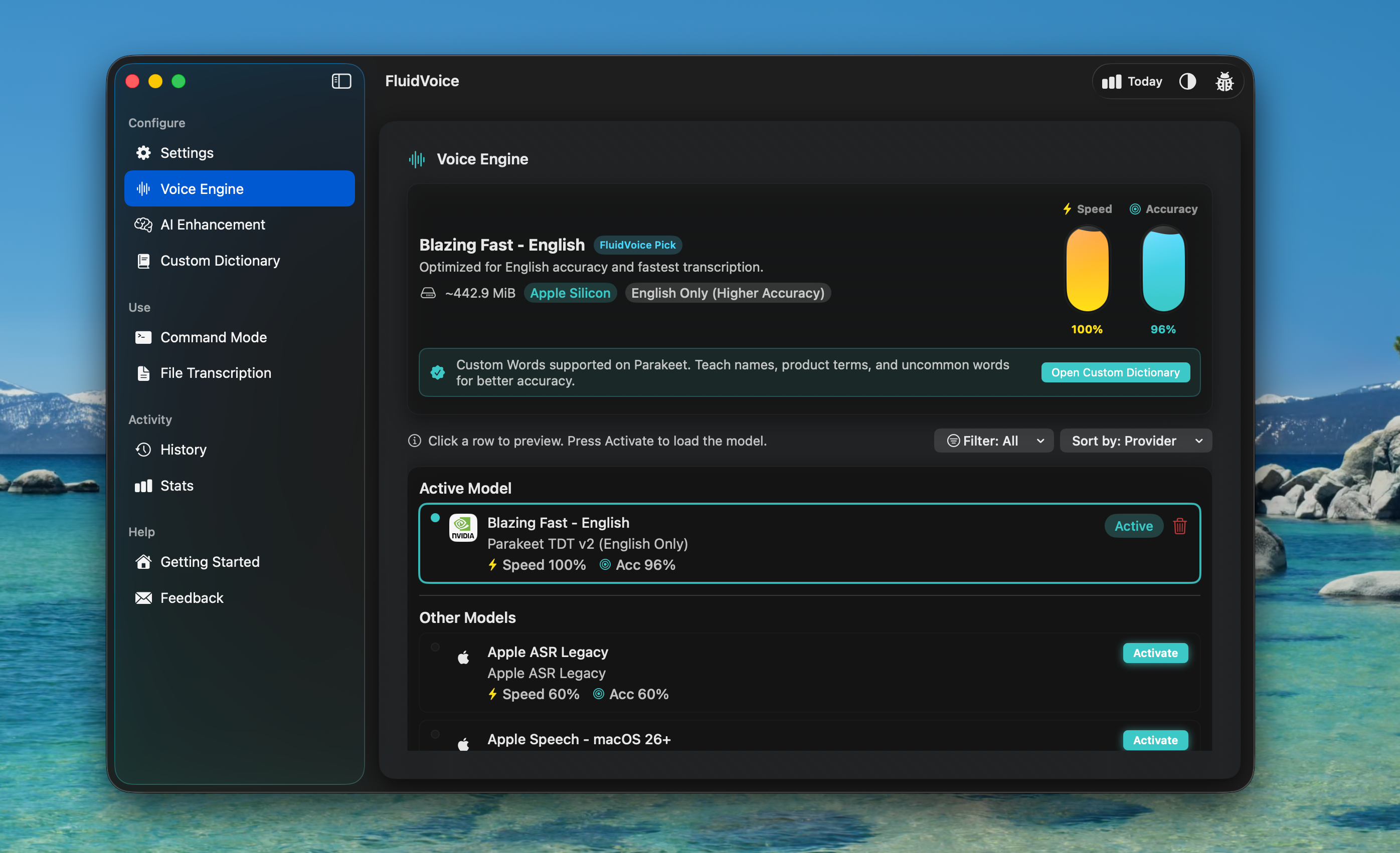
FluidVoice doesn't lock you into one way of turning speech into text. You can pick from several models, including a fast Parakeet model built for near-instant results, Whisper models that cover close to 100 languages, and Apple's own built-in Speech Recognition engine. Each one has a different trade-off between speed and language coverage, so you can pick what fits your setup.
Write Mode
Write Mode is for everyday dictation. Select text in any app, whether that's an email, a Slack message, or a code editor, and speak to add new content or rewrite what's already there. You can even set different behavior per app. Maybe you want a formal tone in email and short, quick replies in Slack. FluidVoice lets you set that up once and forget about it.
Command Mode
This is where FluidVoice goes beyond basic dictation. Command Mode lets you control your Mac with your voice. Say "open Safari and search for FluidVoice" and it does exactly that. You can open apps, run macOS Shortcuts, send messages, or trigger multi-step automations, all without touching the keyboard.
Fluid Intelligence
As mentioned above, this is the optional local AI layer that smooths out your dictated text. It handles punctuation and formatting automatically, so what you say comes out reading like something you actually typed and edited, not a raw transcript.
Notch-Aware Overlay and Theming
While you're dictating, FluidVoice shows a small live preview of what it's hearing. On newer MacBook Pros with the camera notch, this overlay is built to work around it instead of getting blocked by it. You can also adjust the look with light and dark theme options and resize the overlay from a small pill to a larger preview window.
Local by Default
Your voice and your text stay on your Mac unless you specifically choose to connect a cloud AI provider like OpenAI or Groq using your own API key. If you don't set one up, nothing about what you say or type ever leaves your computer.
Installation and Setup
Getting FluidVoice running takes just a couple of minutes.
Homebrew: If you already use Homebrew, this is the fastest way:
1brew install --cask fluidvoiceManual installation: You can also download the latest build straight from FluidVoice's GitHub page and drag it into your Applications folder.
Permissions: The first time you launch it, macOS will ask for microphone access and Accessibility permissions. This is normal for any dictation app. FluidVoice needs microphone access to hear you and Accessibility access to type text into whatever app you're using. Since the app is open source, you can check the code yourself to confirm these permissions are only used for what they claim.
FluidVoice vs MacWhisper
MacWhisper is one of the best-known Mac apps in this space, so it's worth comparing directly. But it's worth saying upfront: these two apps aren't built to do quite the same job.
MacWhisper is made mainly for transcribing files you already have. You drop in an audio or video file, pick a Whisper model, and get a transcript back. It's strong at batch processing, subtitle export, and picking out who said what in a recording with multiple speakers. Live dictation exists in MacWhisper, but it's more of an added feature than the main point of the app.
FluidVoice flips that around. It's built first for real-time dictation, meaning you speak and text appears as you go, right inside whatever app you're using. It doesn't focus on transcribing pre-recorded files the way MacWhisper does.
| Feature | FluidVoice | MacWhisper |
|---|---|---|
| Price | Free | Free tier, Pro from $69 one-time |
| Open source | Yes | No |
| Main focus | Live dictation as you type | Transcribing audio and video files |
| Voice-controlled actions | Yes (Command Mode) | No |
| Speaker identification | No | Yes, on Pro |
| Local processing | Yes | Yes |
If your day-to-day need is speaking instead of typing across all your apps, FluidVoice is built exactly for that, and it costs nothing. If you regularly need to transcribe interviews, meetings, or recorded audio files, MacWhisper's batch tools and speaker detection make it the better fit. Plenty of people could reasonably use both, since they solve different problems.
Performance and Daily Use
FluidVoice feels quick once it's set up. With the Parakeet model in particular, there's barely any gap between speaking and seeing the words appear. How fast it feels day to day depends on your Mac model and which speech model you pick, since some are lighter than others.
Because it's a newer project with a small team behind it, don't expect it to be flawless every single day. Bugs do show up occasionally, but the developer pushes updates often, and issues tend to get fixed quickly once reported.
Pros and Cons
Pros
- Completely free, no subscription or account needed
- Open source, so the core app's code is public
- Runs entirely on your Mac, with no cloud requirement by default
- Supports several speech models with real trade-offs between speed and language coverage
- Command Mode adds real voice control beyond plain dictation
- Active development and a growing community
Cons
- Fluid Intelligence, the AI enhancement layer, isn't open source itself
- Smaller community than more established paid tools
- Not built for transcribing pre-recorded files the way MacWhisper is
- Mac only for now, though Windows and iOS support is planned
- As a younger project, occasional rough edges are more likely
Who Should Use FluidVoice?
FluidVoice makes the most sense for:
- People who want to talk instead of type across their whole Mac, not just one app
- Developers and writers who dictate notes, messages, or code comments throughout the day
- Anyone who's tired of paying a monthly fee for dictation
- Privacy-conscious users who want their voice to stay on their own machine
- Current or former Wispr Flow users looking for a free, local alternative
If your main need is turning recorded interviews or meetings into text files, look at MacWhisper instead. FluidVoice is built around speaking as you go, not processing files after the fact.
Final Verdict
FluidVoice covers a real gap: a genuinely free, open-source, and private way to dictate on your Mac, built by someone who was tired of paying for the same thing every month. It's not trying to replace every transcription tool out there, and it doesn't need to. For everyday dictation and voice control, it already does the job well, and it keeps getting better with regular updates.
If you want to stop paying a subscription just to talk to your Mac, FluidVoice is worth installing today.
Frequently Asked Questions
Is FluidVoice completely free?
Yes. FluidVoice is released under the GPL-3.0 license, so it's free to use and the source code is open for anyone to review.
Does my voice ever leave my Mac?
No, not by default. Everything runs locally unless you choose to connect your own API key for a cloud AI provider.
What is Fluid Intelligence, and do I need it?
It's an optional local AI layer that cleans up formatting and punctuation in your dictated text. It's not required. FluidVoice works fine without it using any of the built-in speech models.
How is FluidVoice different from MacWhisper?
FluidVoice is built for real-time dictation as you speak into any app. MacWhisper is built mainly for transcribing audio and video files you already have.
Does FluidVoice work offline?
Yes. Speech-to-text and Fluid Intelligence both run on-device without an internet connection.
Is FluidVoice coming to Windows or iOS?
Support for both is planned. Right now, FluidVoice is available for Mac only.
Leave a Comment