Utility
How to Check for Malware on Mac (Without Installing Anything)
Malware can hide on your Mac without obvious signs. In this guide, you'll learn how to manually check your Mac for malware - no downloads or extra software required.
Macs are genuinely secure. But that doesn't make them bulletproof. Mac-targeted threats have grown steadily over the past few years, and many of them are designed to stay quiet. A slow Mac, a changed homepage, or a weird background process might be nothing, or it might be something worth looking into.
The steps below walk you through a complete manual malware check on Mac, from top to bottom.
Signs Your Mac Might Have Malware
Before going through the steps, here are some things to watch for:
- Your Mac feels slower than usual, even with few apps open
- Pop-ups or ads appear outside of your browser
- Apps you don't remember installing have shown up
- Your browser keeps sending you to sites you didn't choose
- Your browser homepage or search engine changed on its own
- CPU usage is high in the background for no clear reason
If any of these sound familiar, the steps below will help you find the cause.
How to Check for Malware on Mac (Step-by-Step)
1. Check Activity Monitor
Activity Monitor shows everything running on your Mac — including things you didn't start yourself.
To open it, go to Applications → Utilities → Activity Monitor, or search with Spotlight (Cmd + Space).
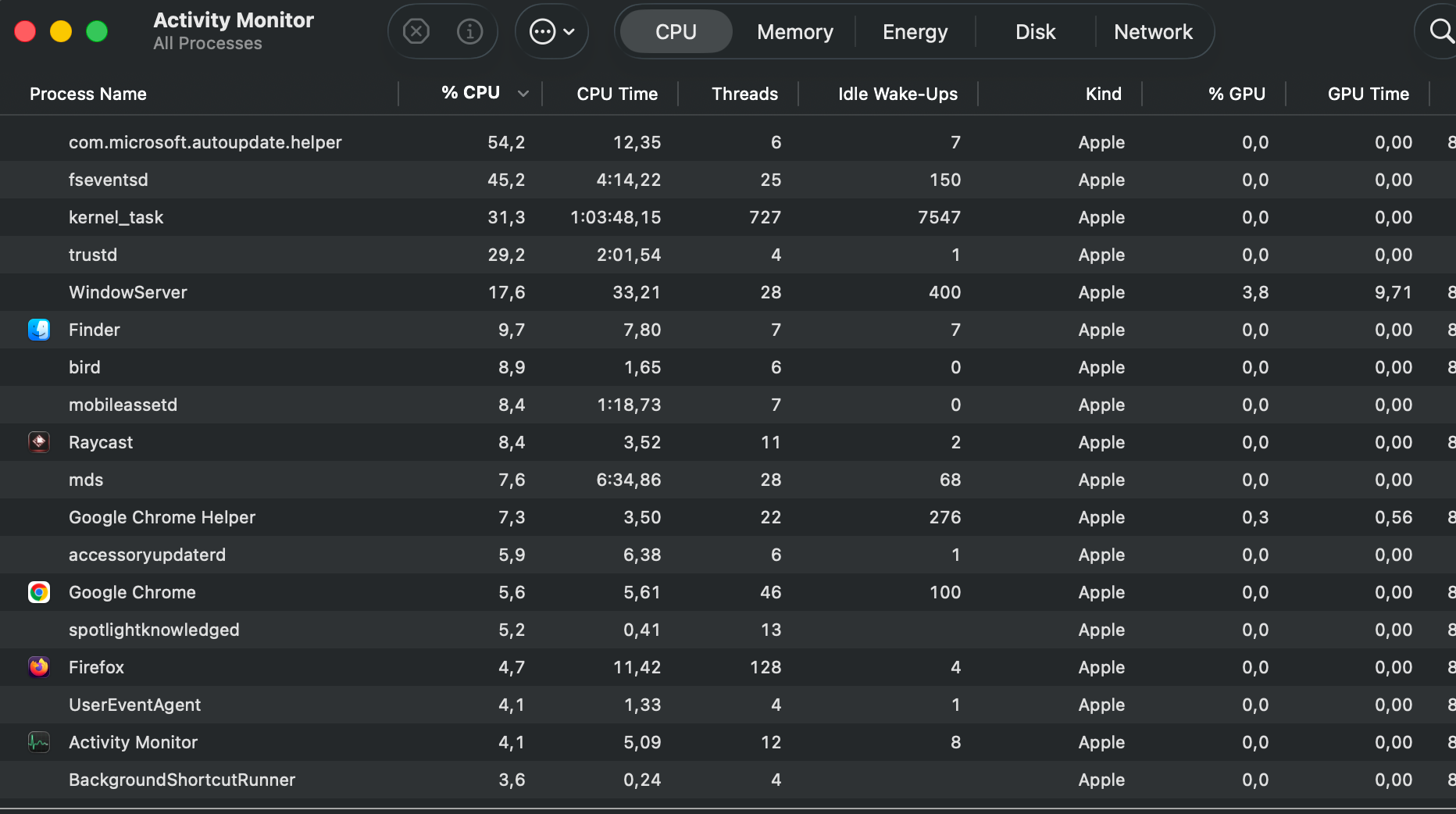
Click the CPU tab and sort by CPU usage. Look for anything consuming a lot of resources that you don't recognize. If you see a process with a strange or random-looking name, search for it online before doing anything.
If you confirm it's malicious, select it and click the X button at the top left to quit it. Then check your Applications folder and Login Items for anything related and remove those too.
2. Review Login Items
Login Items are apps and processes that launch automatically when you log in. Malware often adds itself here to make sure it keeps running every time you start your Mac.
Go to System Settings → General → Login Items & Extensions.
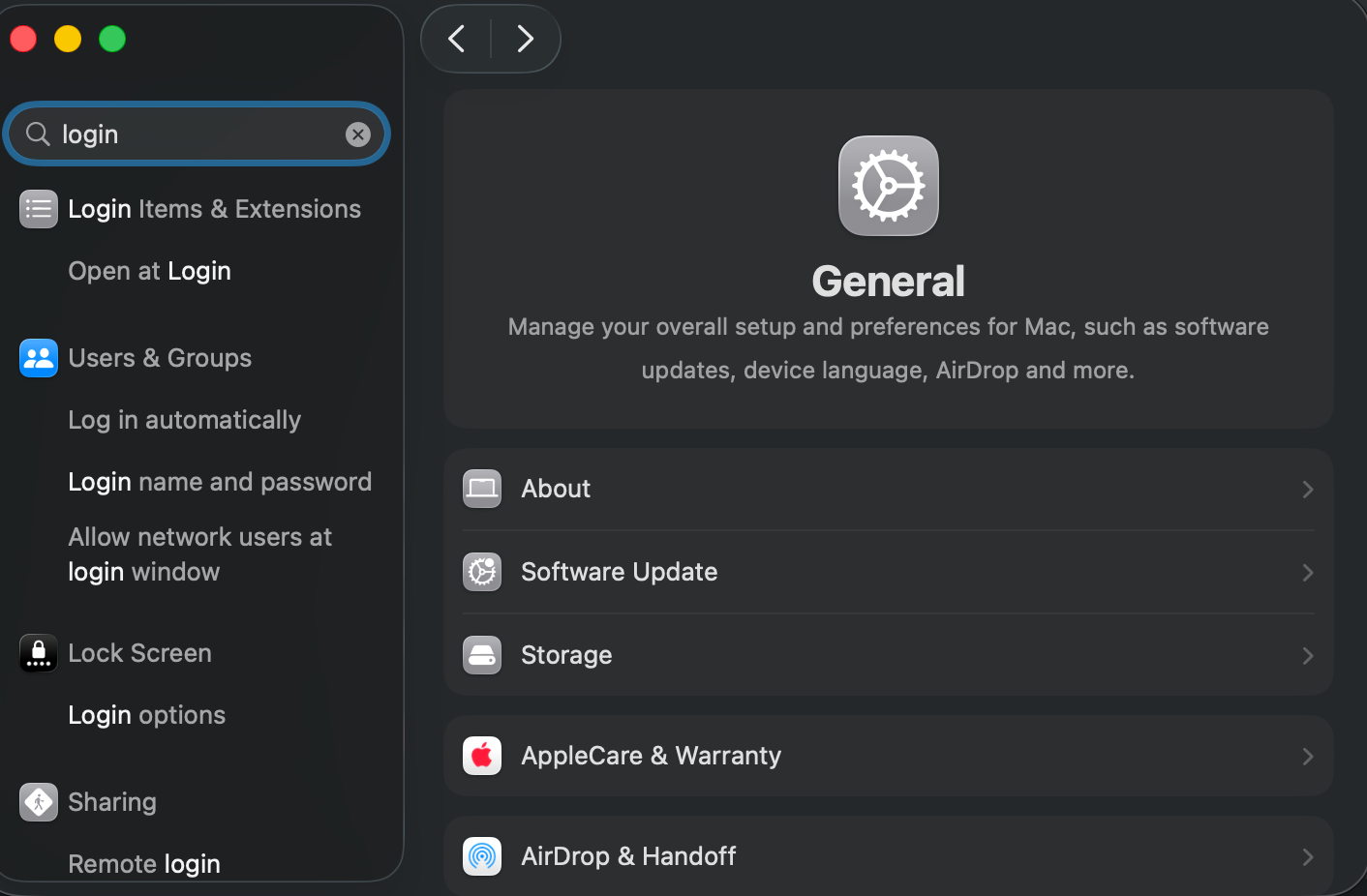
Look through the list carefully. If you see anything you don't recognize or didn't add yourself, look it up first. Once you're sure it's not something you need, toggle it off or remove it entirely.
3. Check the Applications Folder
Open Finder → Applications and sort by date added. This makes it easy to spot anything that appeared recently without your knowledge.
If you find an app you don't remember installing, search for it online. If it turns out to be unwanted or suspicious, drag it to the Trash and empty it immediately.
4. Check LaunchAgents and LaunchDaemons
This is the step most guides skip and it's one of the most important ones for a thorough manual malware check on Mac.
LaunchAgents and LaunchDaemons are files that tell macOS to run certain programs automatically in the background. Legitimate apps use them, but persistent malware hides here too because most users never look.
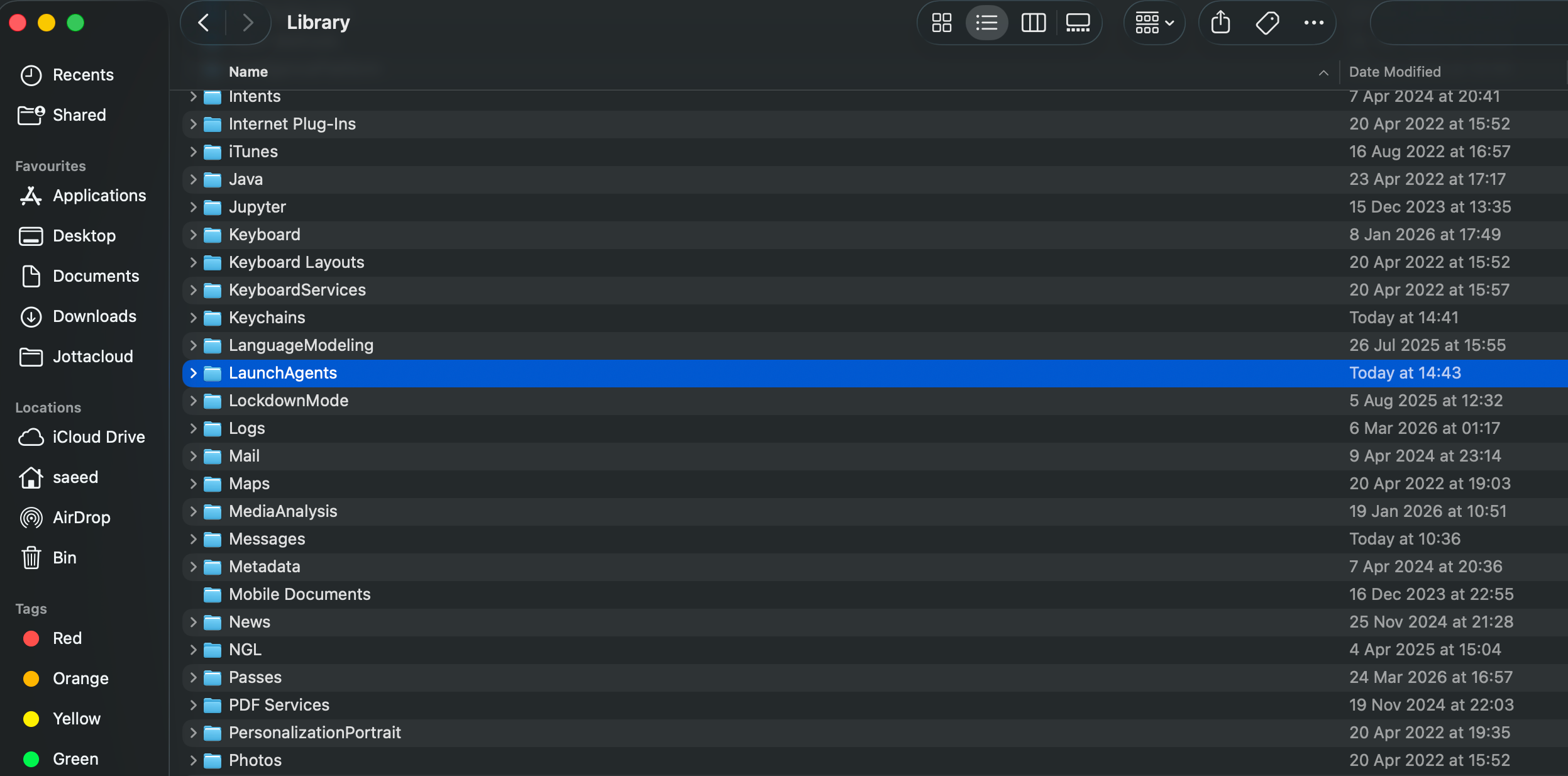
Open Finder, click Go in the menu bar, then choose the Library folder. Check these three locations:
~/Library/LaunchAgents(your user folder)/Library/LaunchAgents(system-wide)/Library/LaunchDaemons(system-wide, runs as root)
Look for .plist files with names that seem random, unfamiliar, or out of place. Search any suspicious file name online before touching it. If it's confirmed malicious, move it to the Trash and restart your Mac.
5. Inspect Browser Extensions
Malware sometimes installs browser extensions that track your activity, redirect searches, or inject ads into pages you visit.
- Safari: Safari → Settings → Extensions
- Chrome: chrome://extensions
- Firefox: about:addons
Remove anything you don't recognize or didn't install yourself. If your homepage or default search engine changed without your input, reset both back to your preferred settings while you're here.
Does macOS Scan for Malware Automatically?
Yes, and it works quietly in the background without you doing anything.
Apple includes three built-in security tools:
XProtect checks files against a list of known malware signatures and blocks them automatically. It updates itself silently, so it's always running with current definitions.
Gatekeeper checks apps the first time you open them to confirm they come from a trusted source, either the App Store or a verified developer. If an app doesn't pass, macOS will warn you or block it.
Malware Removal Tool (MRT) runs periodically and removes known malware that may have already made it onto your system.
The limitation: none of these have a manual scan interface. You can't open them and run a check yourself. They work automatically, which means you have no direct visibility into what they're doing - which is exactly why knowing how to check your Mac for malware manually still matters.
Do You Need Antivirus on Mac?
For most people, no. Apple's built-in protections handle the vast majority of known threats without any extra software.
That said, there are situations where an extra scan makes sense:
- You downloaded something from an unfamiliar website
- You clicked a link you weren't sure about
- Your Mac is behaving strangely and you want to rule malware out
- You just want peace of mind after going through these steps
In those cases, running a one-time scan is a smart move.
Run a Free Malware Scan
After completing the manual checks above, you can run a free Malwarebytes scan to catch anything that might have slipped through. The free version scans and removes malware, and you don't need to keep it installed afterward.
Download it, run the scan, remove what it finds, then uninstall it if you don't want it taking up space. It's a tool, not a subscription.
If your Mac still feels slow or cluttered after cleaning things up, it might also be worth exploring the best Mac cleaner apps to free up storage and get things running smoothly again.
FAQ
How do I check my Mac for malware?
You can manually check your Mac for malware by reviewing Activity Monitor for suspicious processes, checking Login Items in System Settings, scanning your Applications folder for unknown apps, inspecting the LaunchAgents and LaunchDaemons folders, and removing unfamiliar browser extensions. For a deeper check, you can also run a free scan with Malwarebytes.
Does my Mac already have a malware scanner?
Yes. macOS includes built-in tools — XProtect, Gatekeeper, and the Malware Removal Tool — that scan for known threats automatically in the background. The downside is there's no manual interface to run a scan yourself or see the results. That's why doing a manual check on your own is still useful if something feels off.
Can Macs get malware?
Yes, though it's less common than on Windows. Most Mac malware arrives through downloaded apps, fake software installers, or browser extensions rather than traditional viruses. Apple's built-in protections reduce the risk, but they don't eliminate it completely.
How do I check Mac for malware without downloading anything?
Go through these five areas manually: Activity Monitor, Login Items, Applications folder, LaunchAgents and LaunchDaemons folders, and browser extensions. Together, these cover the most common places malware hides on a Mac — and you don't need to install anything to check them.
Should I install antivirus on my Mac?
Most users don't need it. macOS already includes strong protections that cover the majority of known threats. If you stick to the App Store and verified developers, the built-in tools are usually enough. For occasional extra peace of mind, a free tool like Malwarebytes works well without needing to stay installed permanently.
Leave a Comment